
Chapter 1 of 11
Welcome: choose your path
What Studio does, what it costs (nothing) and three ways to begin.
RumahHQ Studio is a free planning tool from RumahHQ Development Sdn Bhd, a home builder in Klang, Selangor. You draw the layout, look at it in 3D, and get an estimated cost with a full Bill of Quantities (BQ): the item-by-item list of work that a contractor prices. The PDF copy is sent to your e-mail.
What is free, and what asks you to sign in
Everything is free. Some things need you to sign in first, because they are saved to your account or use the AI:
- No sign-in needed: drawing, templates, the furniture library, the 3D view, settings and Contact Us.
- Sign-in needed (WhatsApp code, under a minute): saving designs to your account, the AI layout generator and AI pictures, and the cost estimate with your BQ.
Your first minute
Open the editor and pick a way to begin
Step 1 of 4
Open the editor
Press Open the editor below, or Start designing on the home page. You land on an empty plan. Nothing is asked of you: no sign-up, no card.
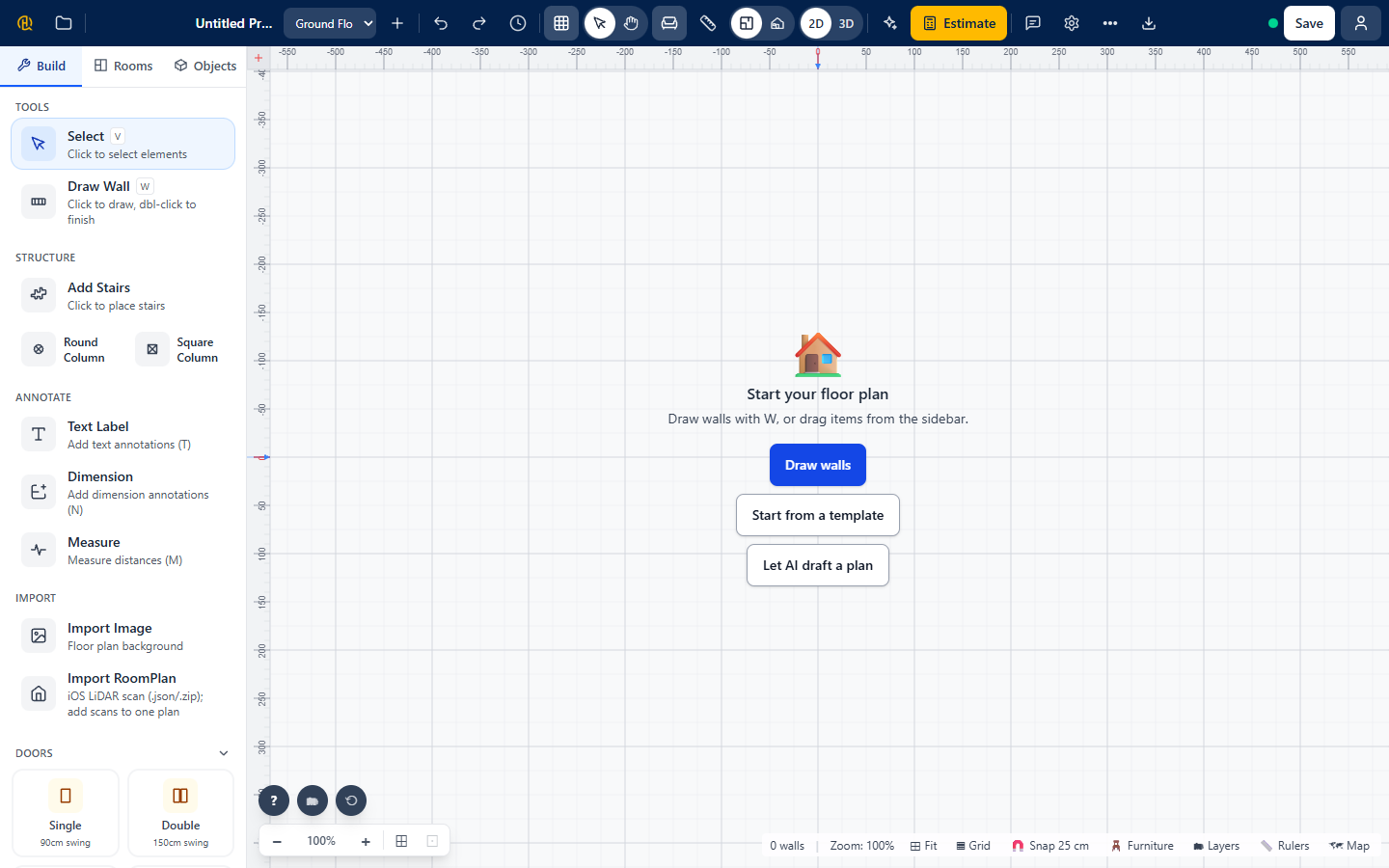
Choose one of three buttons
On the empty plan, Start your floor plan offers the three fastest starts:
- Draw walls: click the plan to place each corner of a wall.
- Start from a template: pick a complete house and change it.
- Let AI draft a plan: describe your lot and let the AI propose a layout.
Templates: a house in one click
Choose Start from a template and the list Pick a house to start from opens, with the size of each layout. Tap one: it opens in the editor, ready to change room by room.
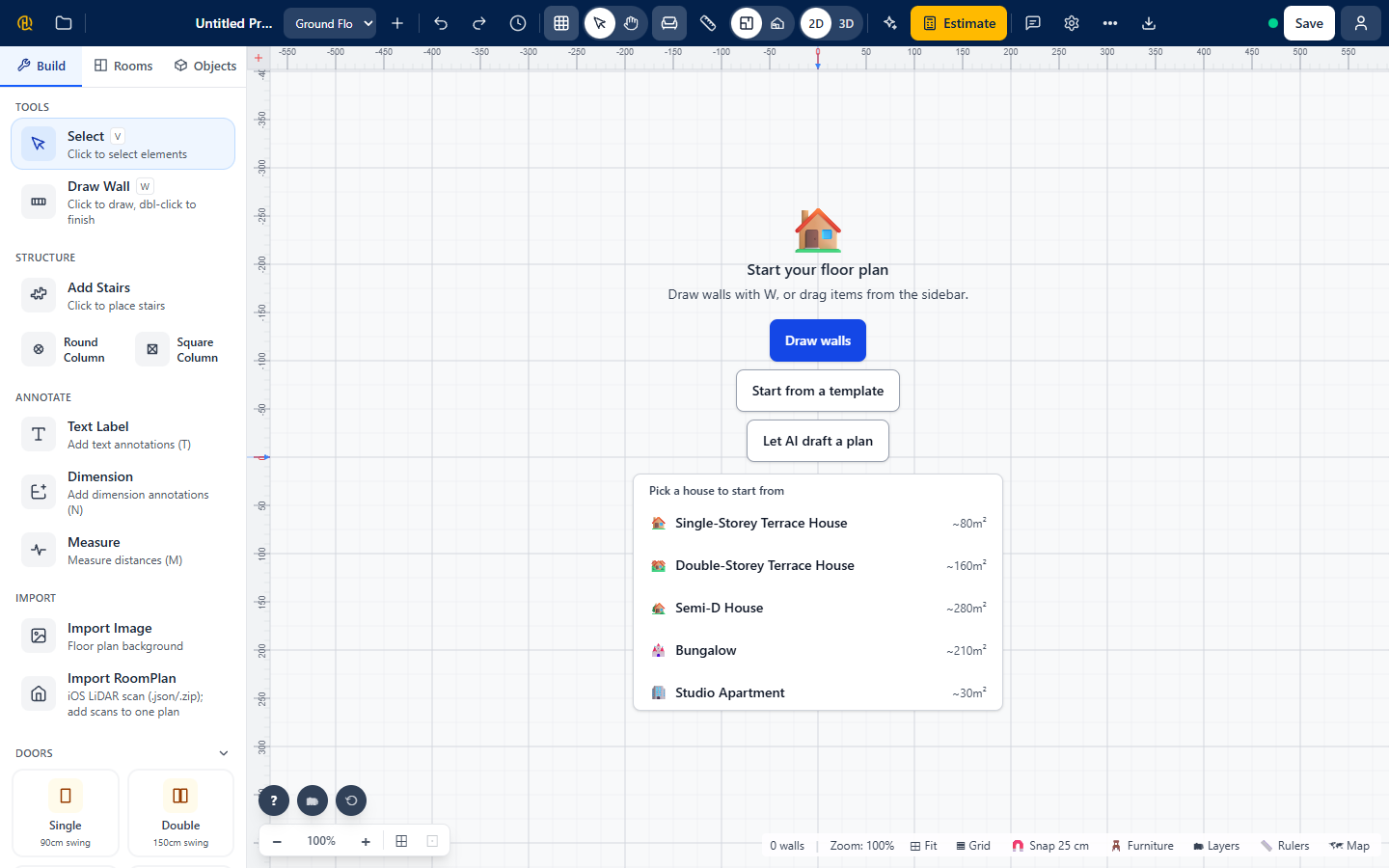
Your drawing stays on your device
Everything you draw is kept in your browser, so closing the tab does not lose it. To open it on another device, save it to your account (Chapter 7).
Tip: press the left and right arrow keys to move between steps.
Chapter 2 of 11
Sign in with WhatsApp
No passwords. A 6-digit code on WhatsApp, only when you need it.
Studio has no passwords. You sign in with your WhatsApp number and a one-time 6-digit code. Studio asks at the moment you need it (when you save, ask the AI or want your BQ) and always says why.
Sign in, step by step
Step 1 of 4
Studio tells you why
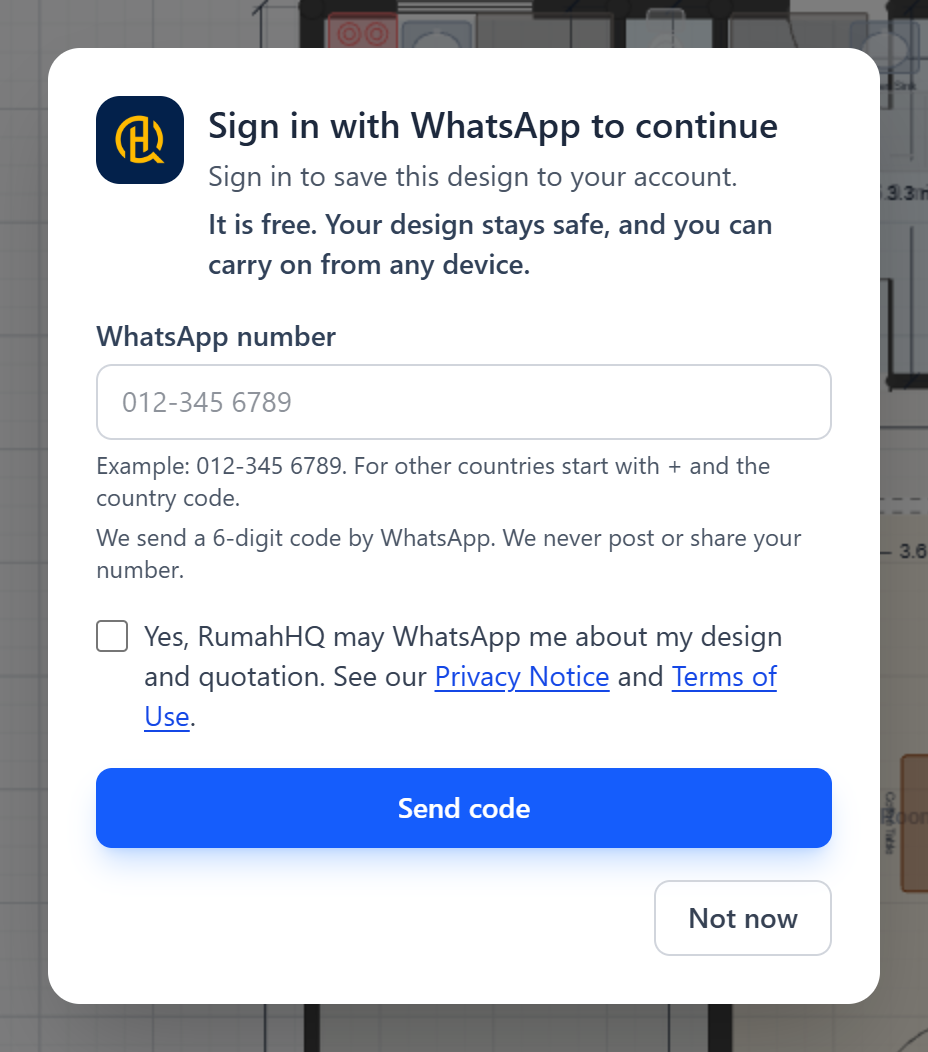
When you press something that needs an account, the dialog Sign in with WhatsApp to continue opens. It shows the reason, for example “Sign in to use the AI layout generator and AI images”. Choose Not now to go back to drawing.
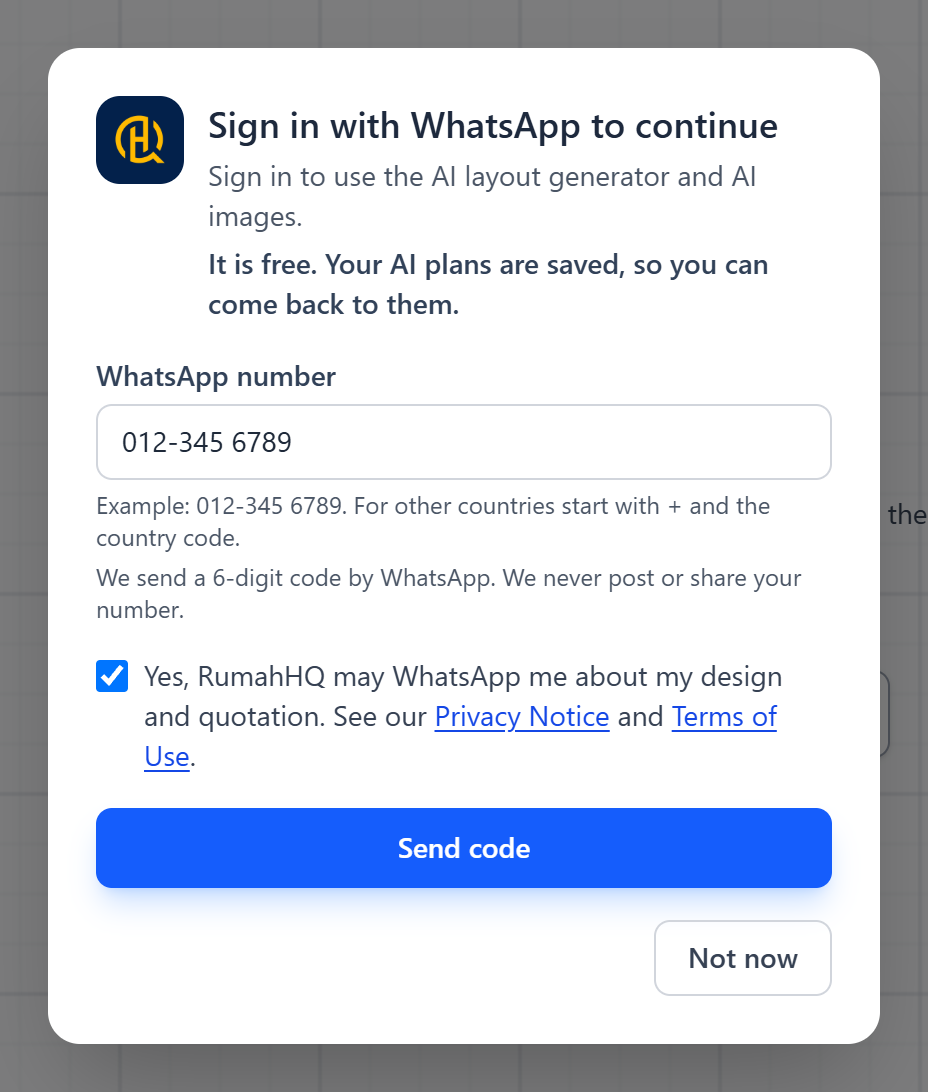
Enter your WhatsApp number
Type the number you use on WhatsApp, for example 012-345 6789. For a number outside Malaysia start with + and the country code. Tick the box that lets RumahHQ message you about your design and quotation, then press Send code.
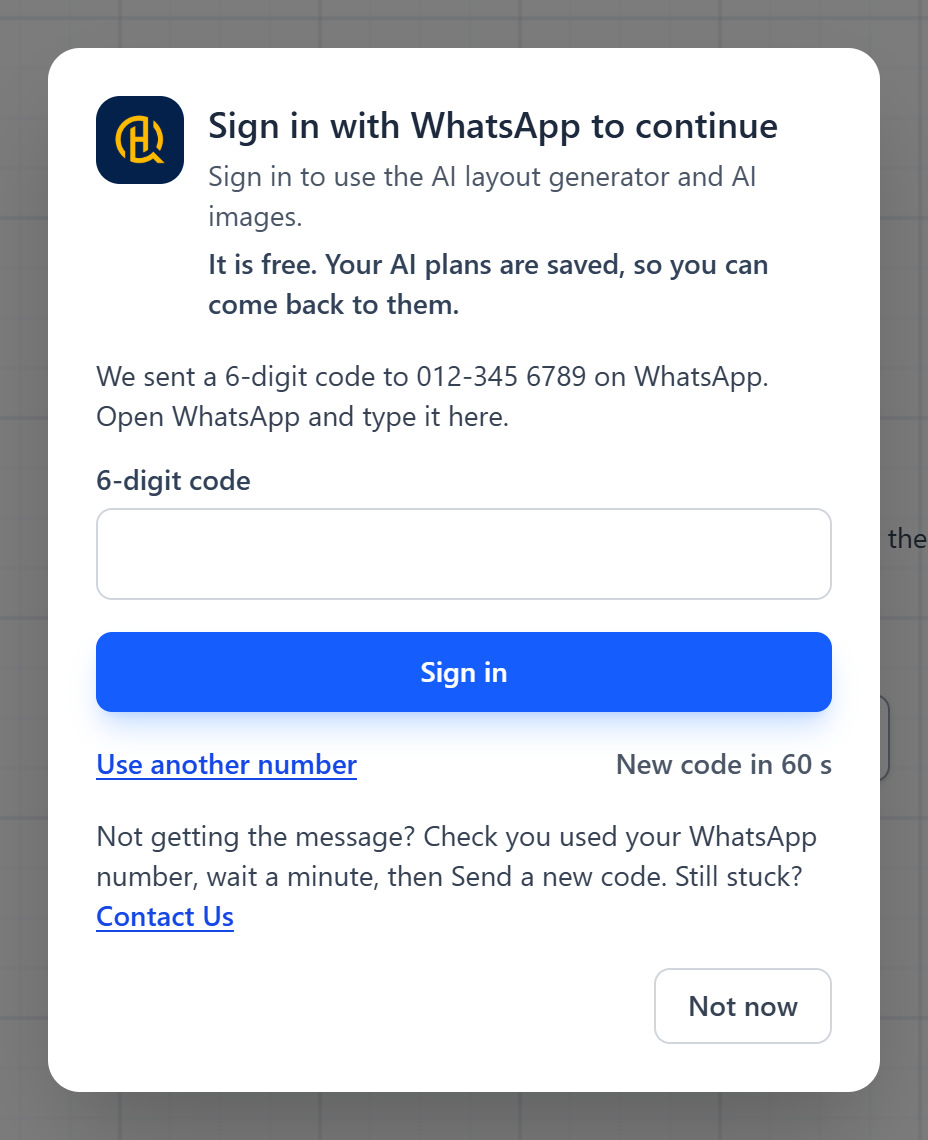
Type the 6-digit code
A message from RumahHQ arrives in WhatsApp within moments. Type its 6-digit code and press Sign in. Each code works once and expires after 5 minutes.
You are signed in
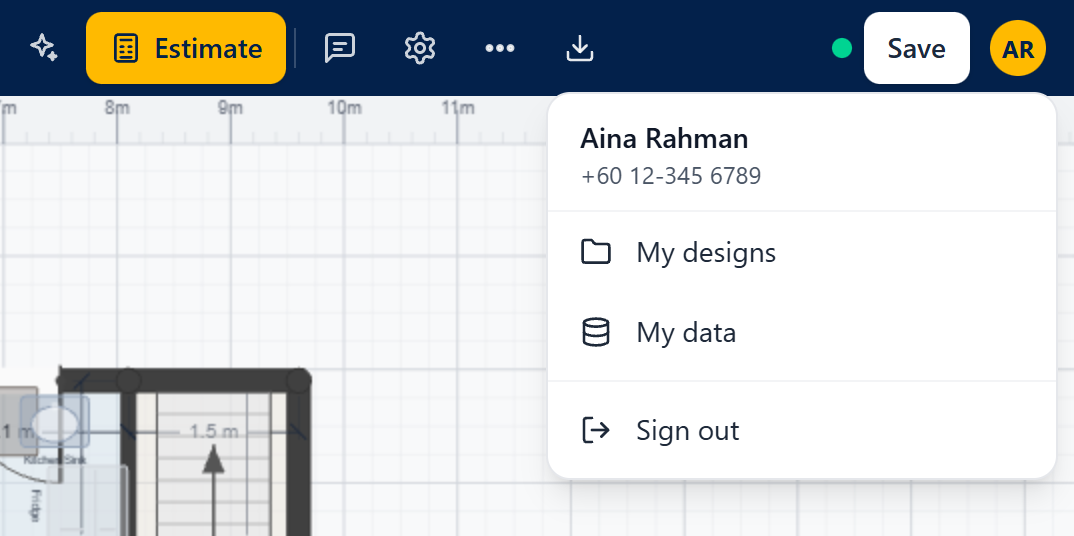
An account button now sits at the right of the header. Open it to see My designs, My data and Sign out. Your design is still on screen: carry on from where you were.
Tip: press the left and right arrow keys to move between steps.
👀 What you will see
After the code, the dialog closes and the thing you wanted (saving, the AI panel or the estimate) continues by itself.
🚫 Common mistakes
- Using an SMS number that has no WhatsApp: the code is sent through WhatsApp only.
- Using an old code. Each time you ask, a new code is sent: use the newest message, or press Send a new code.
- Typing a number from a country that is not supported yet. For now codes go to numbers in Malaysia, Singapore, Indonesia, Brunei and Thailand. If yours is elsewhere, contact us and we will help.
Chapter 3 of 11
Let AI draft your layout
Describe your lot and your wishes, and get a first floor plan with advice.
Not keen on a blank page? Tell the AI layout generator about your lot and your house. It proposes the rooms, then Studio’s own code draws the walls, doors and windows to fit your lot.
Write a good brief
The AI works from a short brief. The numbers matter most, and the notes let you say what numbers cannot:
- Lot width and Lot depth (m): your plot, for example 12 and 20 for a 12 × 20 m lot. Allowed: 5 to 100 m.
- Bedrooms and Bathrooms: 1 to 10 of each.
- Storeys: 1 or 2.
- Notes (optional): your wishes in your own words, up to 1000 characters.
From brief to draft
Step 1 of 8
Open Ask AI
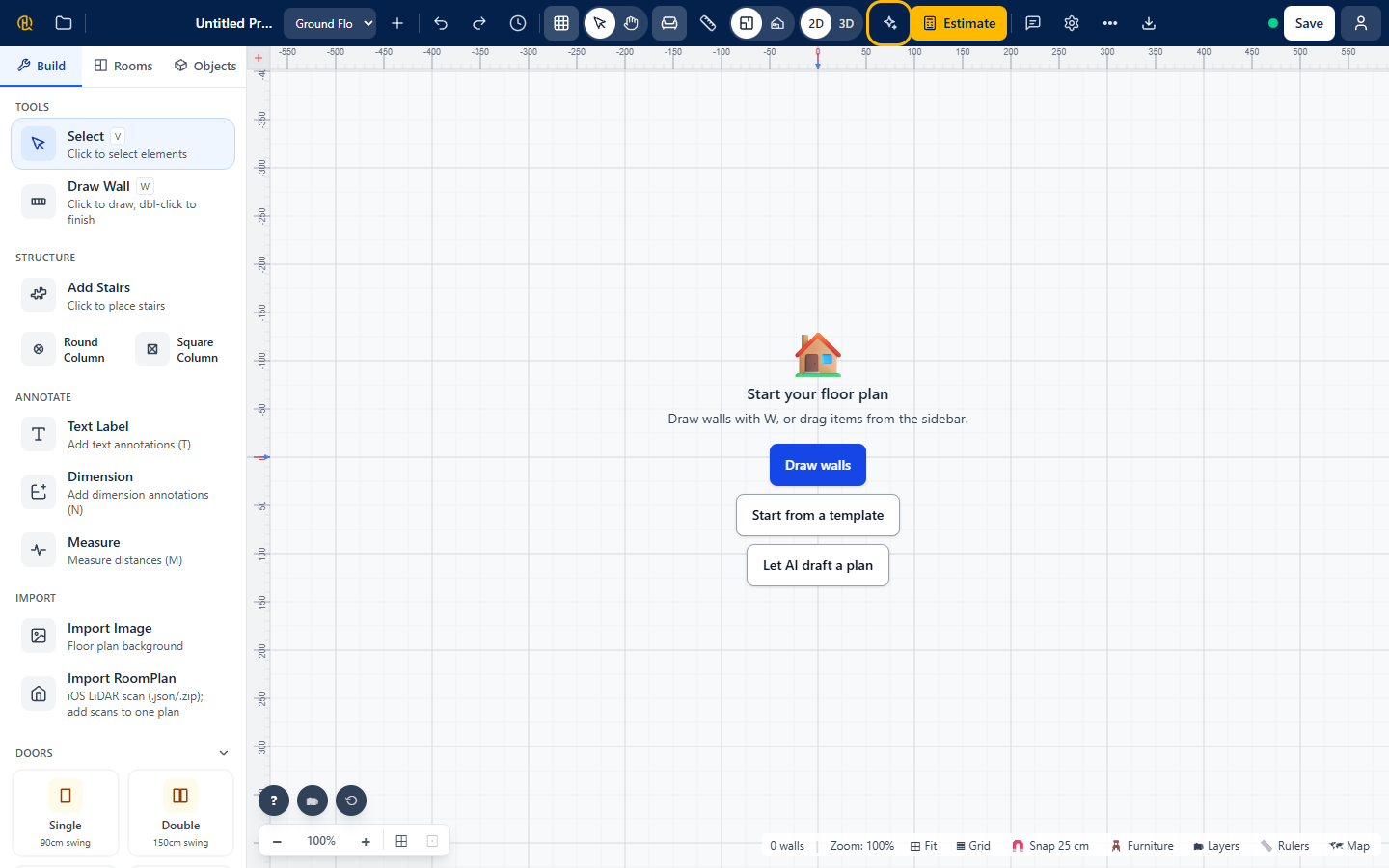
Press the sparkle button Ask AI to draft a plan in the header, or Let AI draft a plan on an empty plan. If you are not signed in, the sign-in dialog appears first (Chapter 2). It is free.
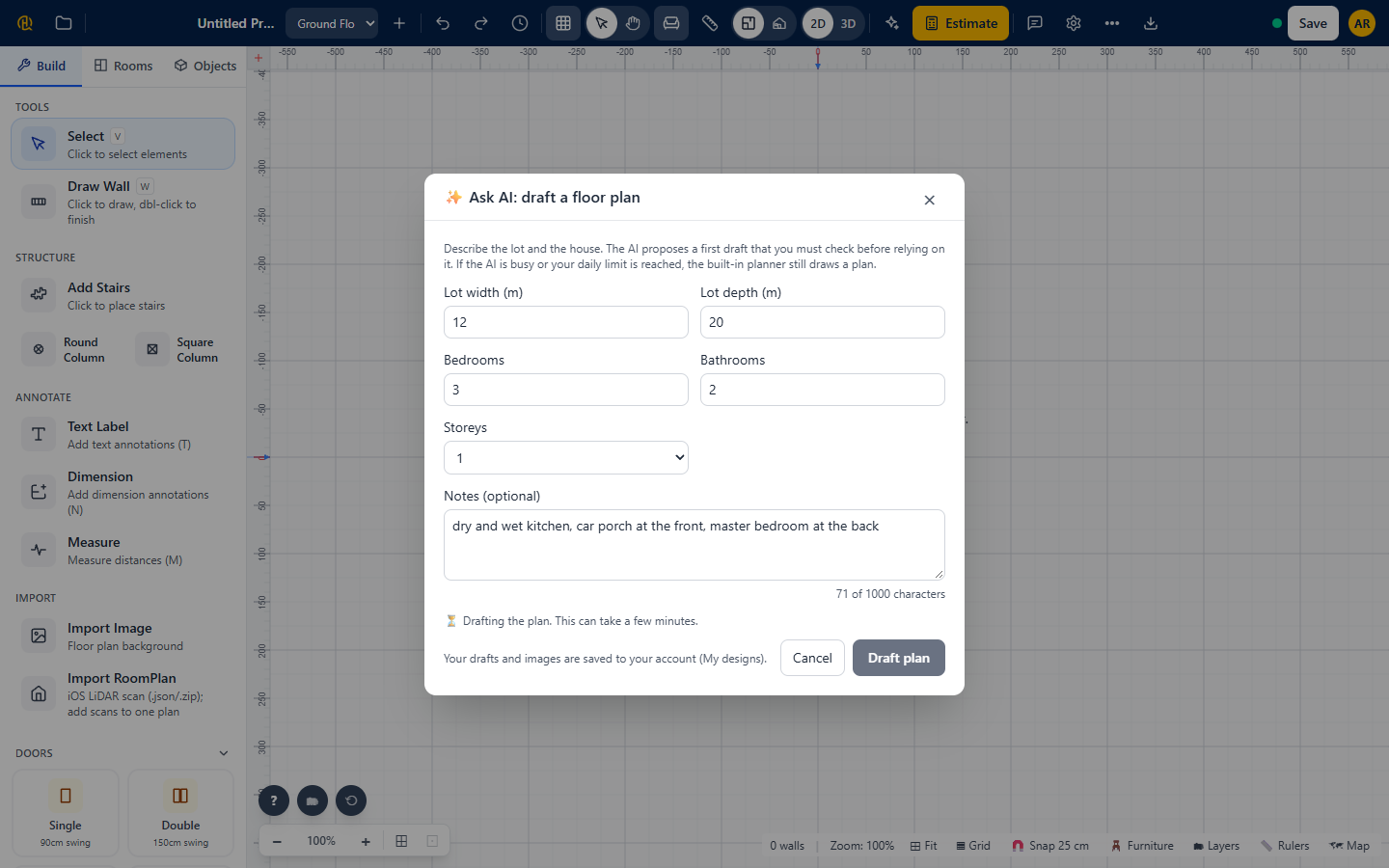
Fill in the brief
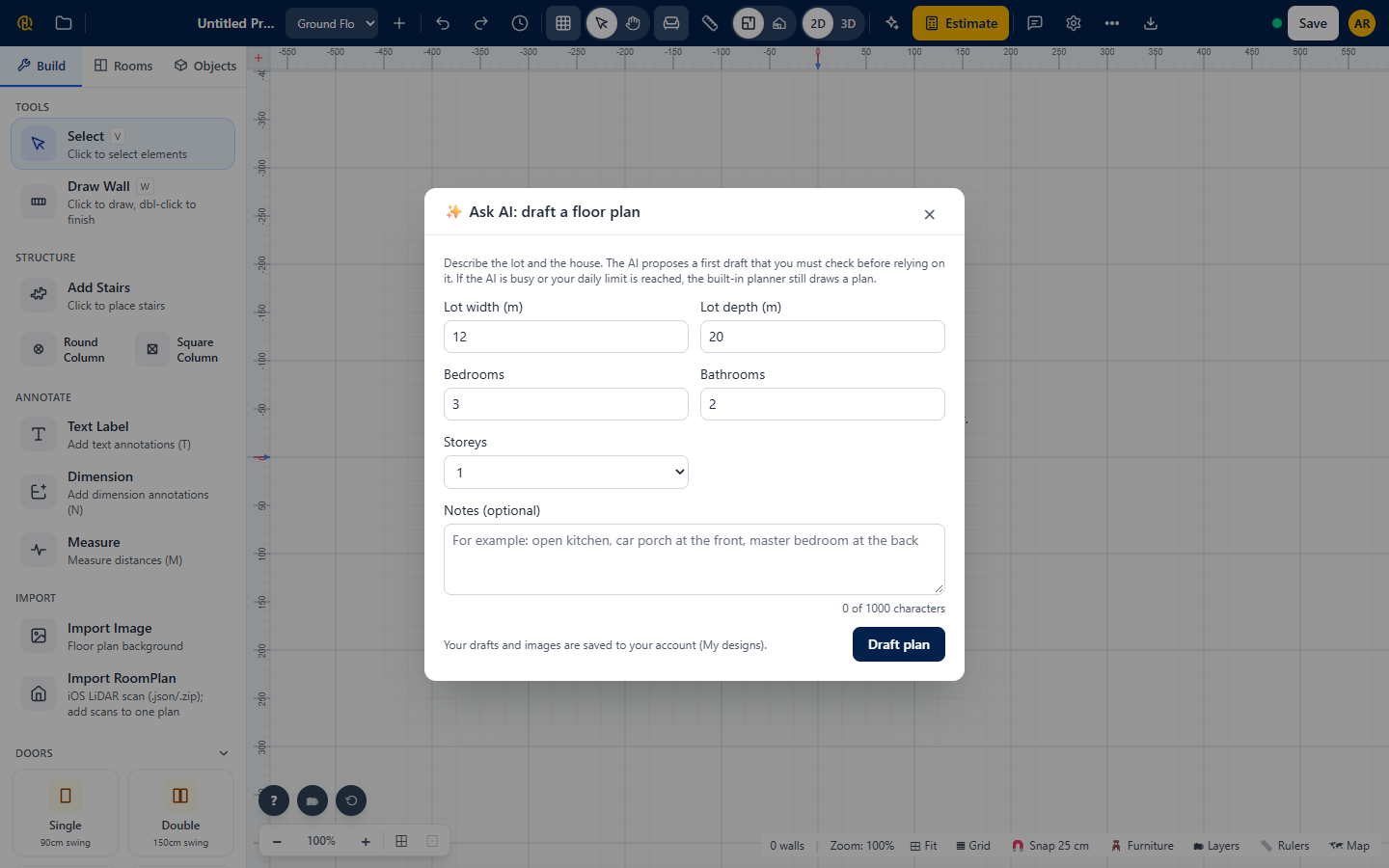
The form Ask AI: draft a floor plan asks for the lot width and depth, the bedrooms, bathrooms and storeys. It also shows how many AI layouts you have left today.
Add your wishes
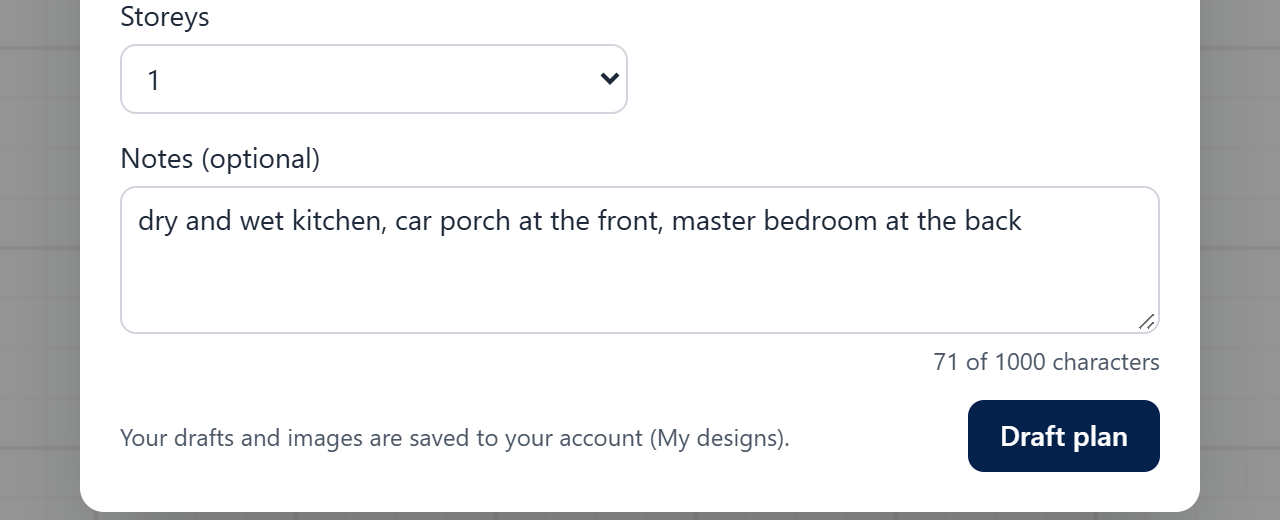
Type what the numbers cannot say in Notes (optional): where the kitchen goes, a car porch, a quiet bedroom. A counter shows how many of the 1000 characters you used.
Press Draft plan and wait
Press Draft plan. Drafting can take a few minutes, and every attempt counts against your daily limit. You can press Cancel at any time.
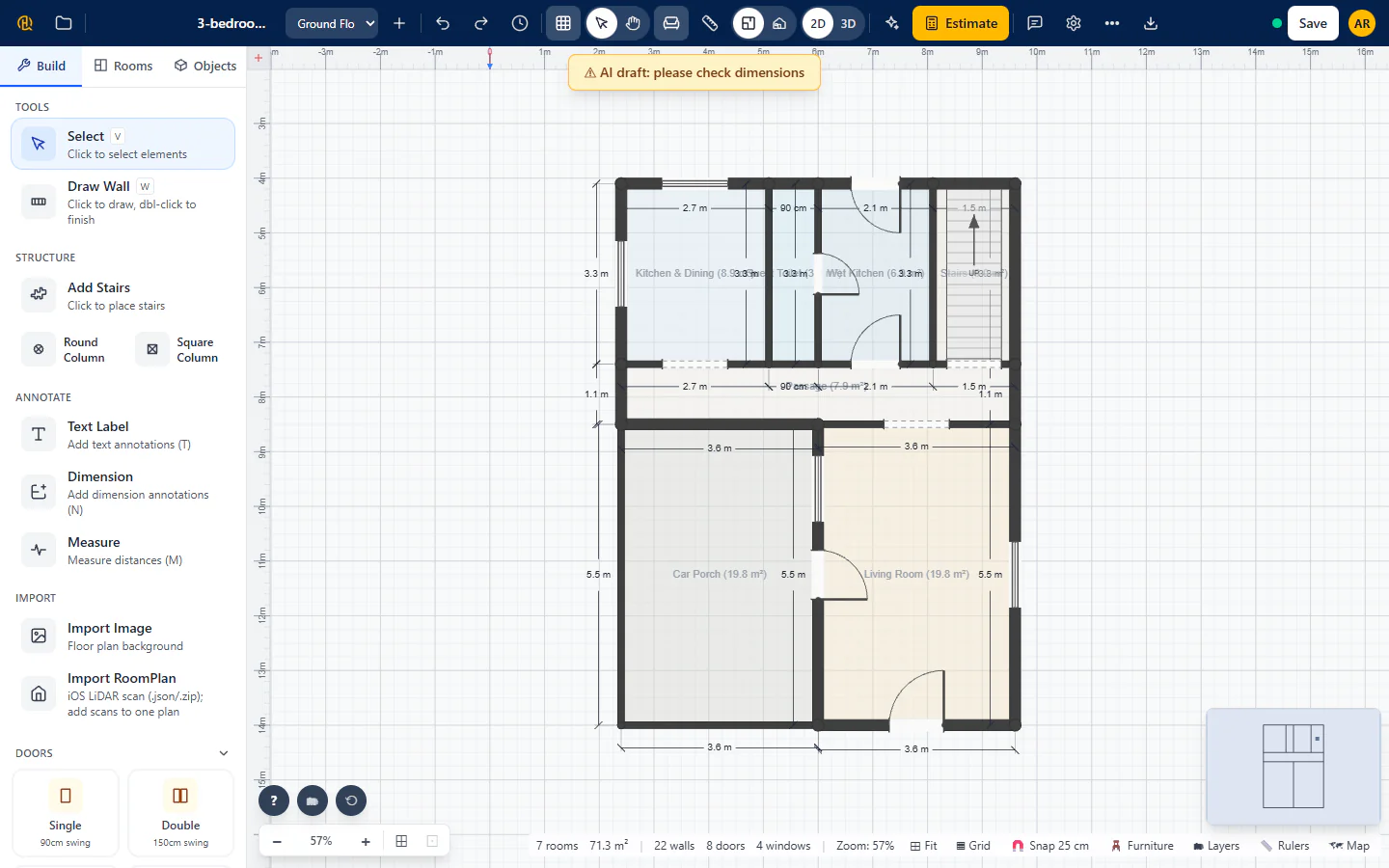
The draft opens on your plan
The plan appears in the editor with a banner, AI draft: please check dimensions, until you make your first change. The result panel shows the plan quality score out of 100 and the buttons See it in 3D and Get my estimate.
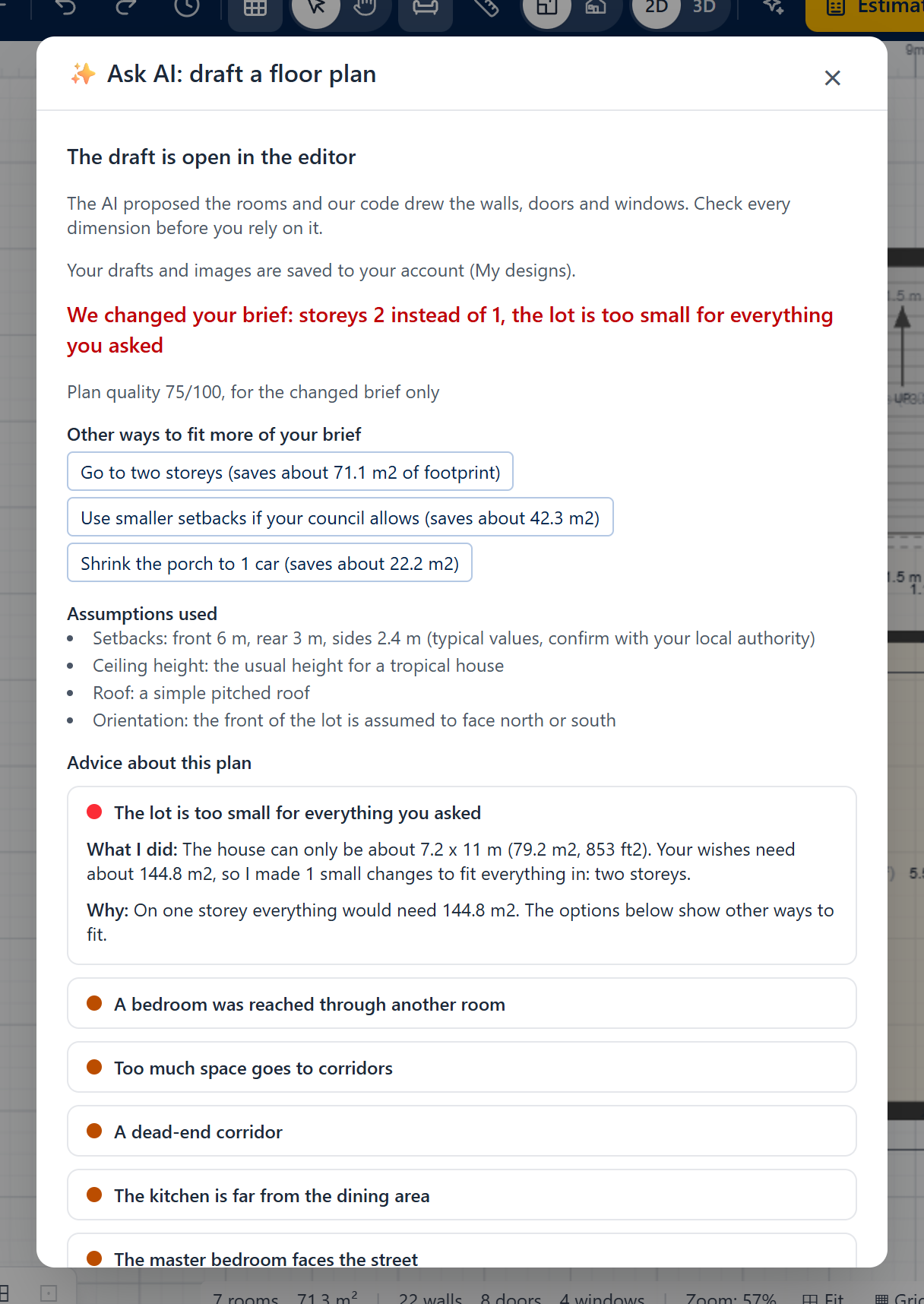
Read the advice cards
Under the result you find plain-language notes:
- What I did and Why: one card per decision, with Other options when there were alternatives.
- Adjustments made to the AI’s proposal: shown when your brief could not fit the lot (for example “bedrooms 4 of 5”).
- Assumptions used: what the draft took for granted.
- Notes marked Check with your local authority or engineer need a professional’s eye.
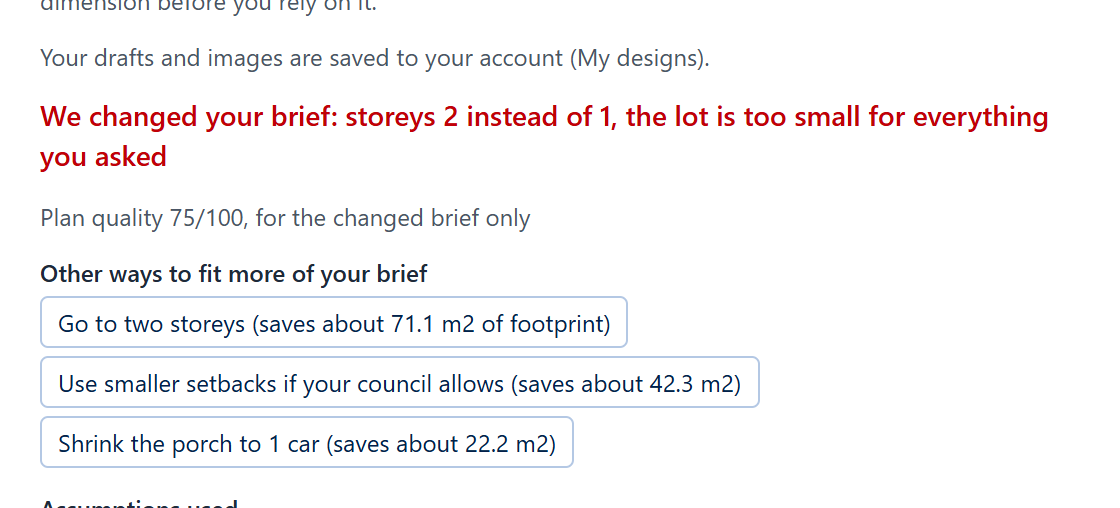
Adjust or draw it again
Under Other ways to fit more of your brief, each button redraws the plan with one change, for example two storeys instead of one or a smaller porch. Your earlier draft stays saved, so try them freely. Or just edit the plan yourself (Chapter 4).
Every draft is kept
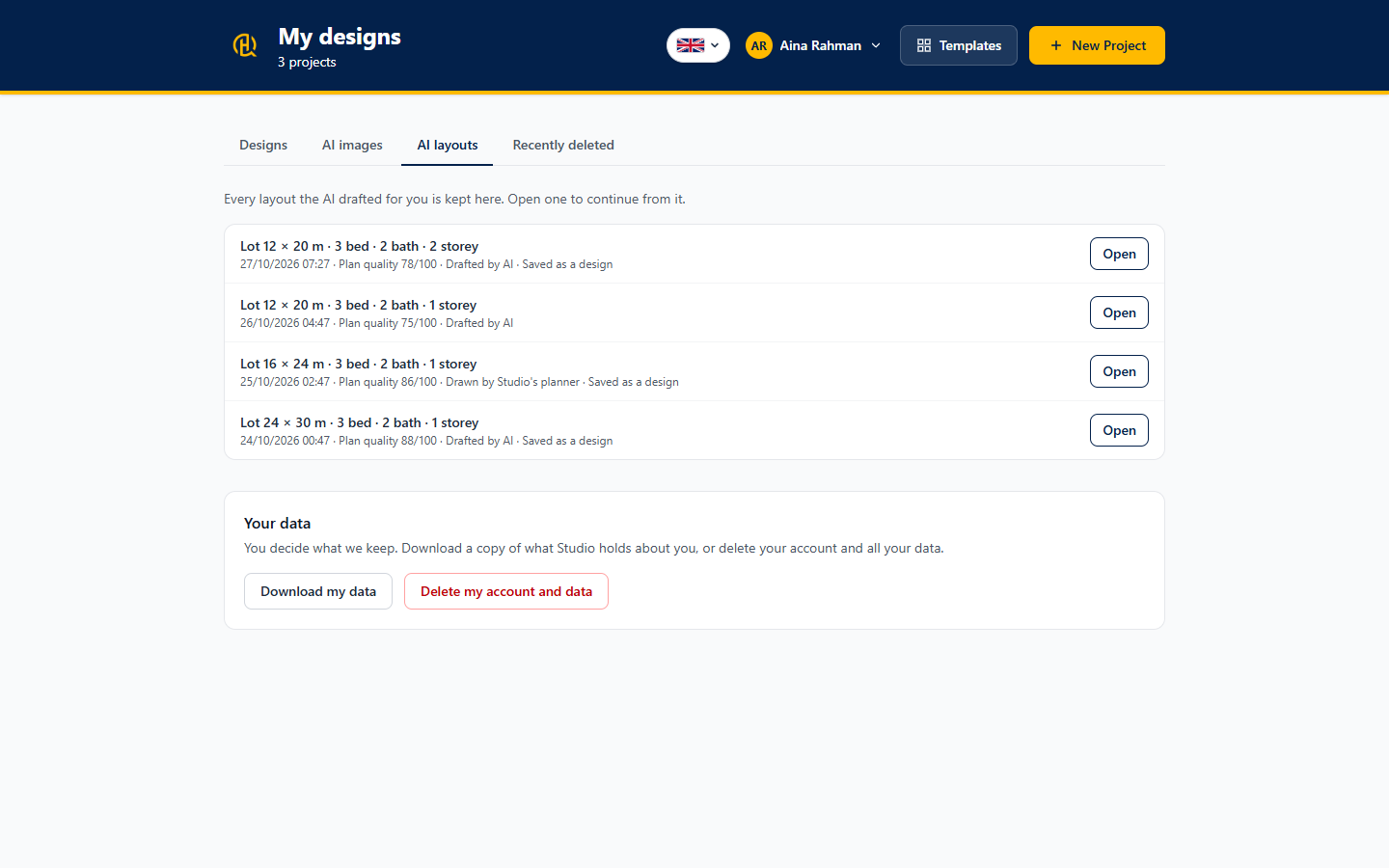
Each layout the AI makes is stored in My designs, on the AI layouts tab, with the brief that made it. Open one there to carry on from it (Chapter 7).
Tip: press the left and right arrow keys to move between steps.
👀 What you will see
A draft with the rooms you asked for, walls, doors and windows drawn to fit the lot, and a banner that asks you to check the dimensions.
🚫 Common mistakes
- Asking for more than the lot can hold (for example 5 bedrooms on a 6 × 10 m lot). Studio will adjust the brief and tell you exactly what it changed.
- Leaving the notes empty and then wishing for a car porch. The AI cannot guess: write it down.
- Treating the draft as final. Always check the dimensions.
AI pictures of your 3D view
Once you have a plan, the AI can turn a view inside your house into a photo-style picture. It uses a separate daily count, shown next to the button.
Make an AI picture
Step 1 of 3
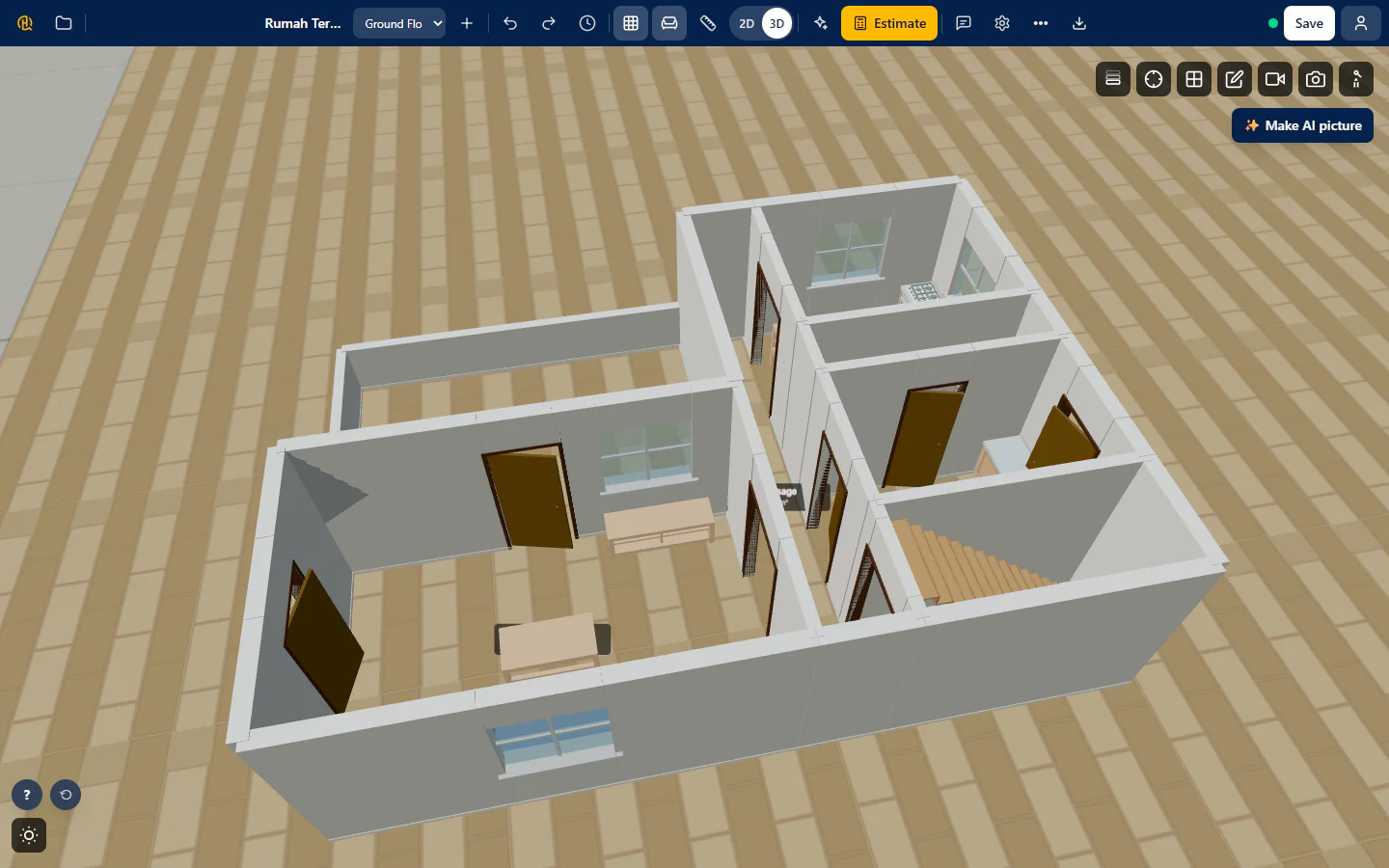
Place a camera in 3D
Switch to 3D, press Place Interior Camera, click the floor where you would stand, then click where you want to look.
Choose the look
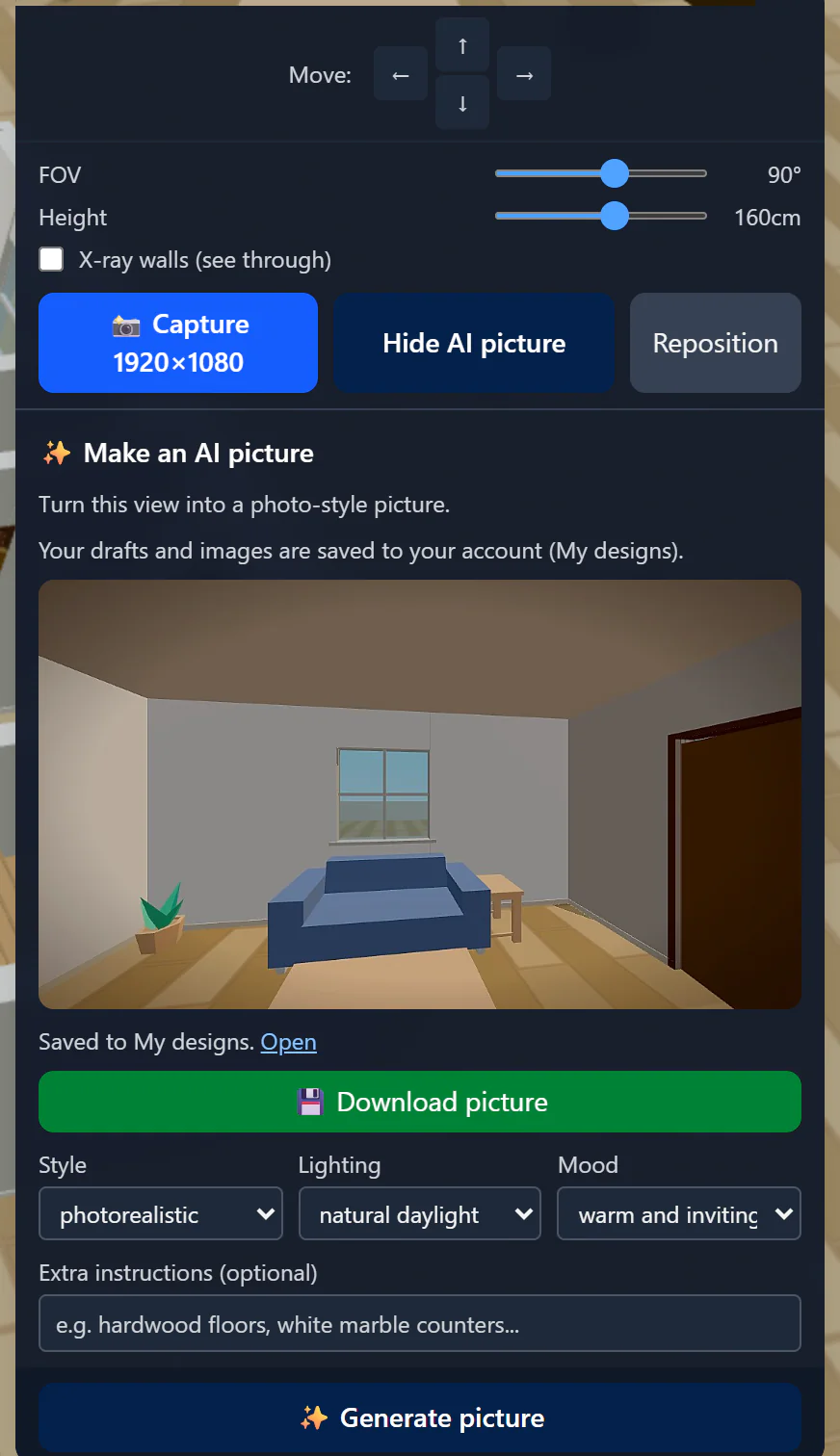
Press Make AI picture. Pick a style, lighting and mood, add extra instructions if you like (for example “hardwood floors, white marble counters”), and press Generate picture.
Download or find it later
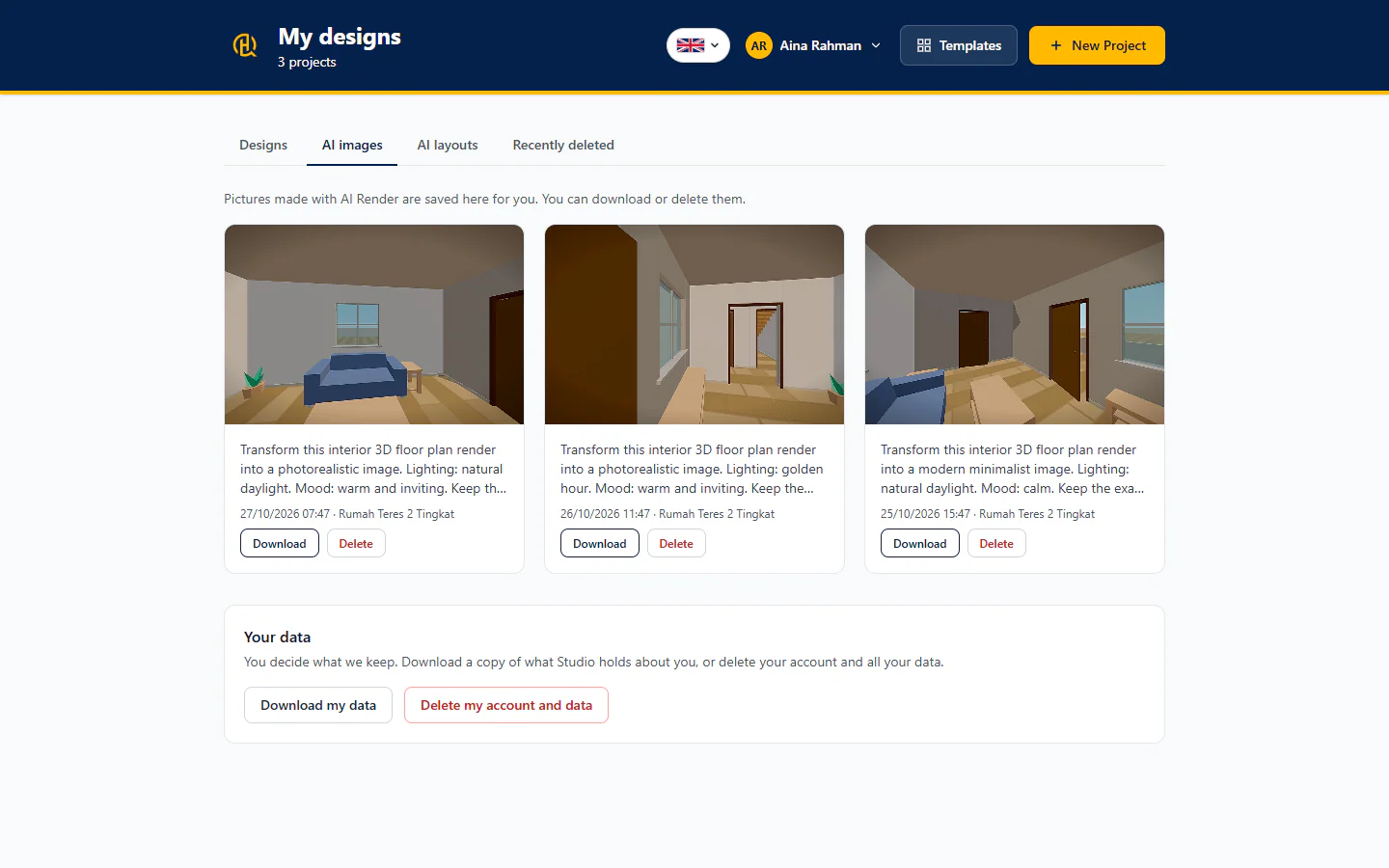
The picture shows on screen with Download picture. It is also saved in My designs on the AI images tab, where you can download or delete it.
Tip: press the left and right arrow keys to move between steps.
Chapter 4 of 11
Edit your layout
Walls, rooms, doors, windows, furniture, dimensions, floors, layers and undo.
Whatever starts you off (a template, an AI draft or a blank page), the plan is fully yours to change. Everything can be undone, so experiment freely.
Draw walls and rooms
Walls, rooms, doors and windows
Step 1 of 4
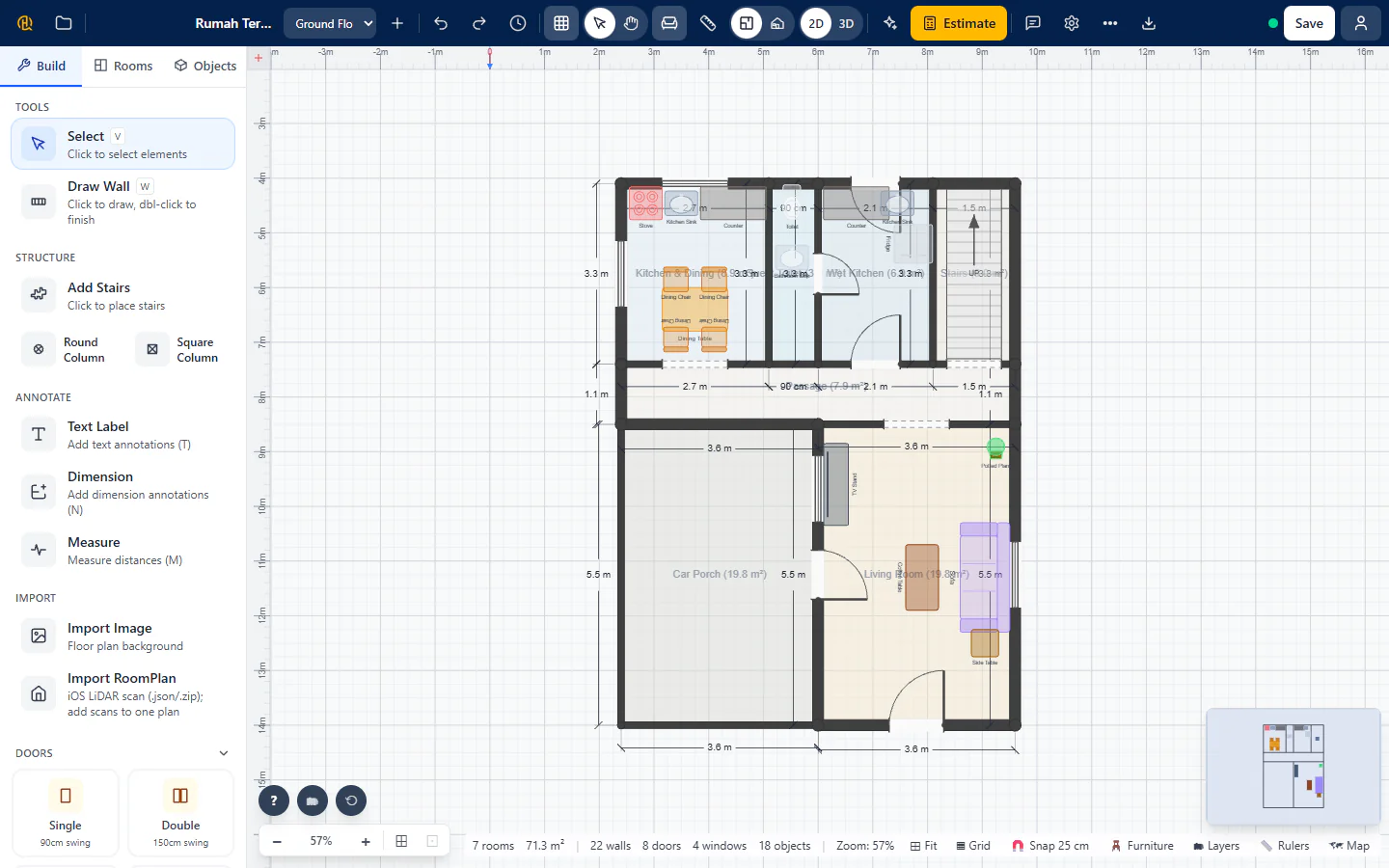
Meet the Build panel
The panel on the left has three tabs: Build (tools such as Select, Draw Wall, stairs, columns, annotations and import), Rooms and Objects. On a phone it opens from the Tools button (Chapter 9).
Draw walls
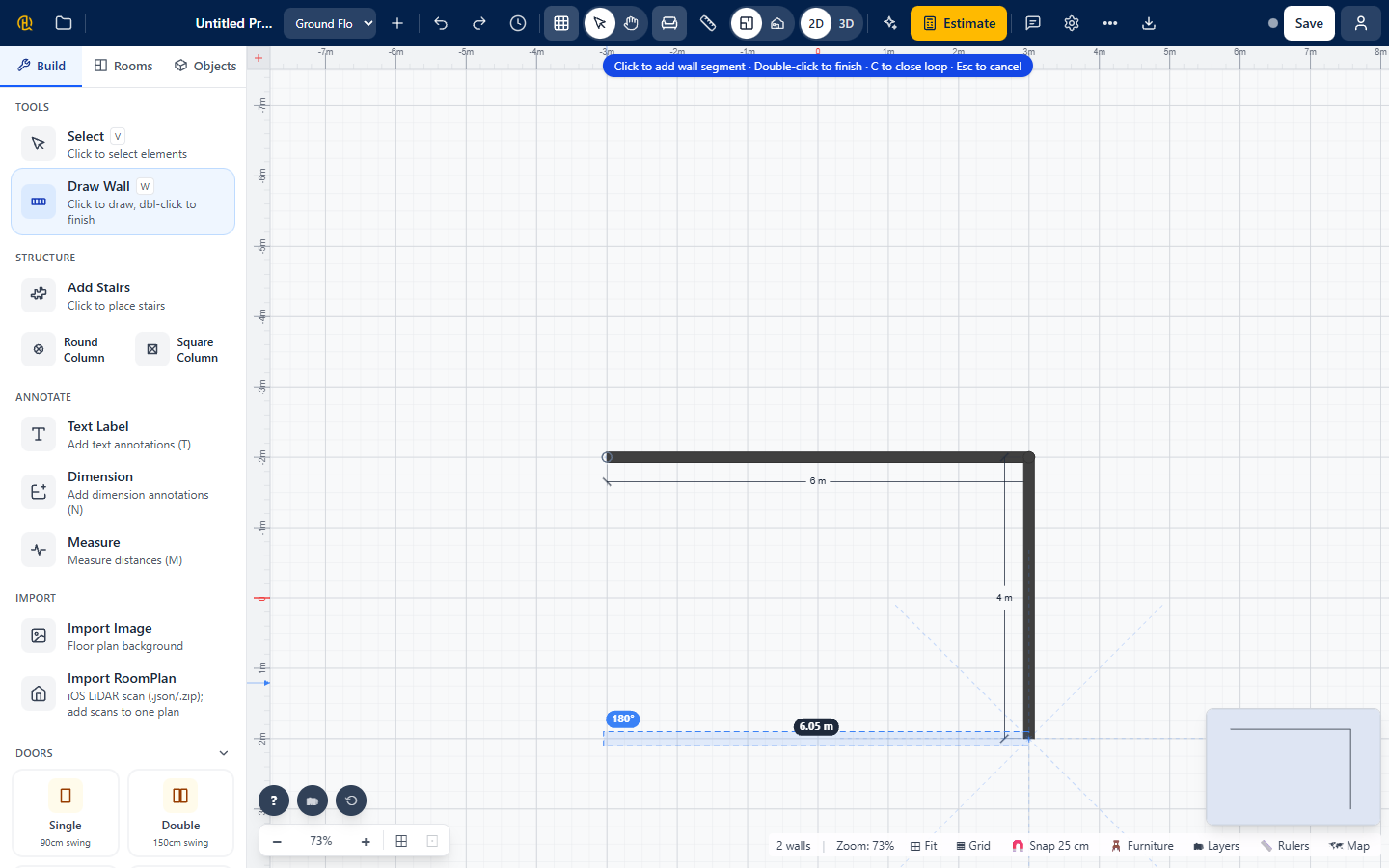
Choose Draw Wall (or press W). Click the plan to place each corner; the length of the wall shows as you draw. Double-click, or press Esc, to finish the run. Press C to close a loop. Rooms form by themselves between walls.
Add whole rooms
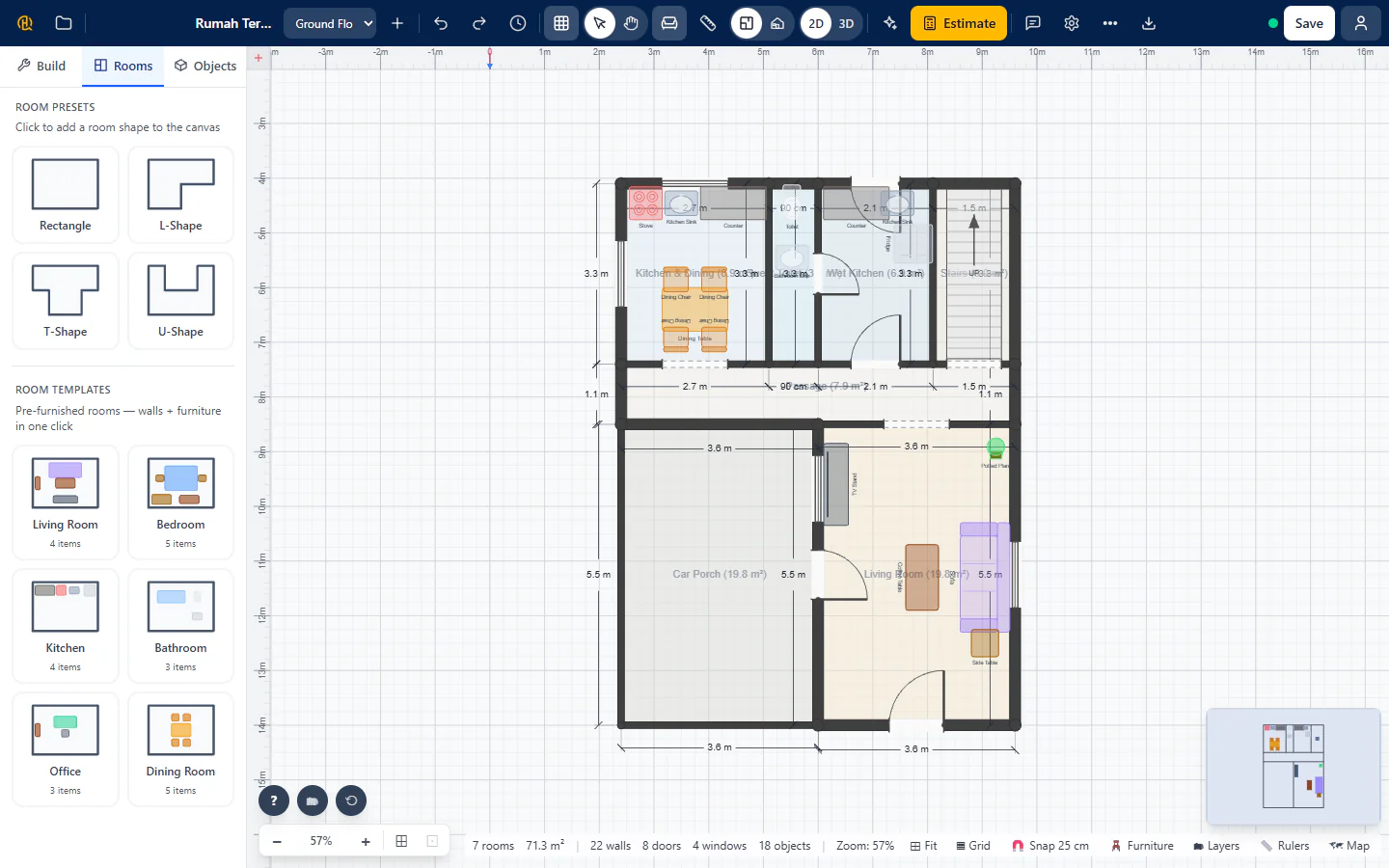
Open the Rooms tab. Room Presets (Rectangle, L-Shape, T-Shape, U-Shape) click a shape onto the canvas. Room Templates are pre-furnished rooms with walls and furniture in one click.
Place doors and windows
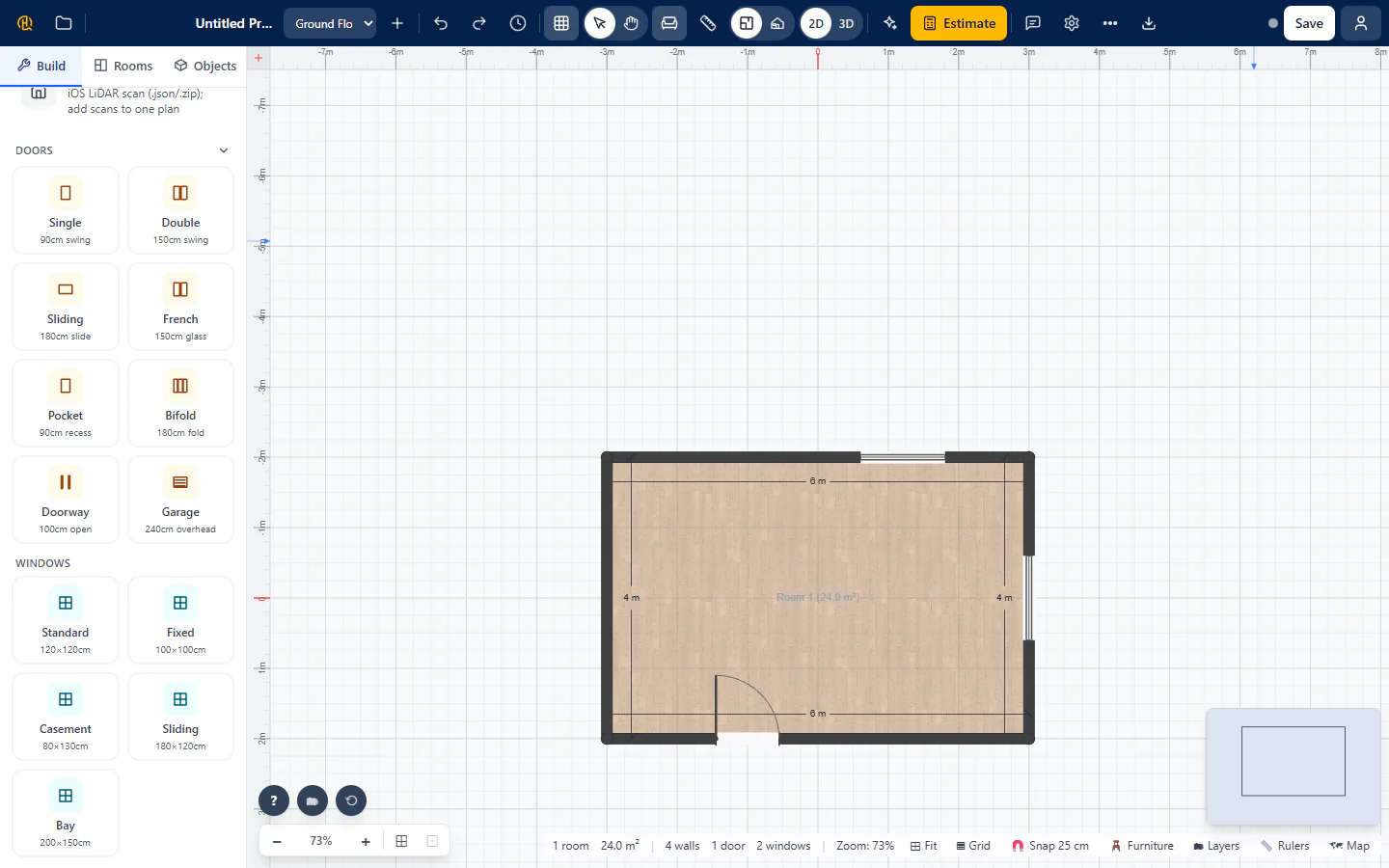
In the side panel choose a door or a window type, then click a wall to place it. Drag it along the wall to move it. Select it to change its size or delete it.
Tip: press the left and right arrow keys to move between steps.
🚫 Common mistakes
- Leaving a gap between wall corners, so the room never closes. Finish a loop by clicking the first corner, or press C.
- Forgetting to name the room type. The cost estimate counts bedrooms, bathrooms and kitchens from the room labels: click a room and set its type.
Furnish the rooms
Furniture, search and properties
Step 1 of 5
Open the Objects tab
The Objects tab holds the furniture library: living room, bedroom, kitchen, bathroom, outdoor, landscaping and more. Categories let you narrow it down. Favorites and Recent keep your usual choices one tap away.
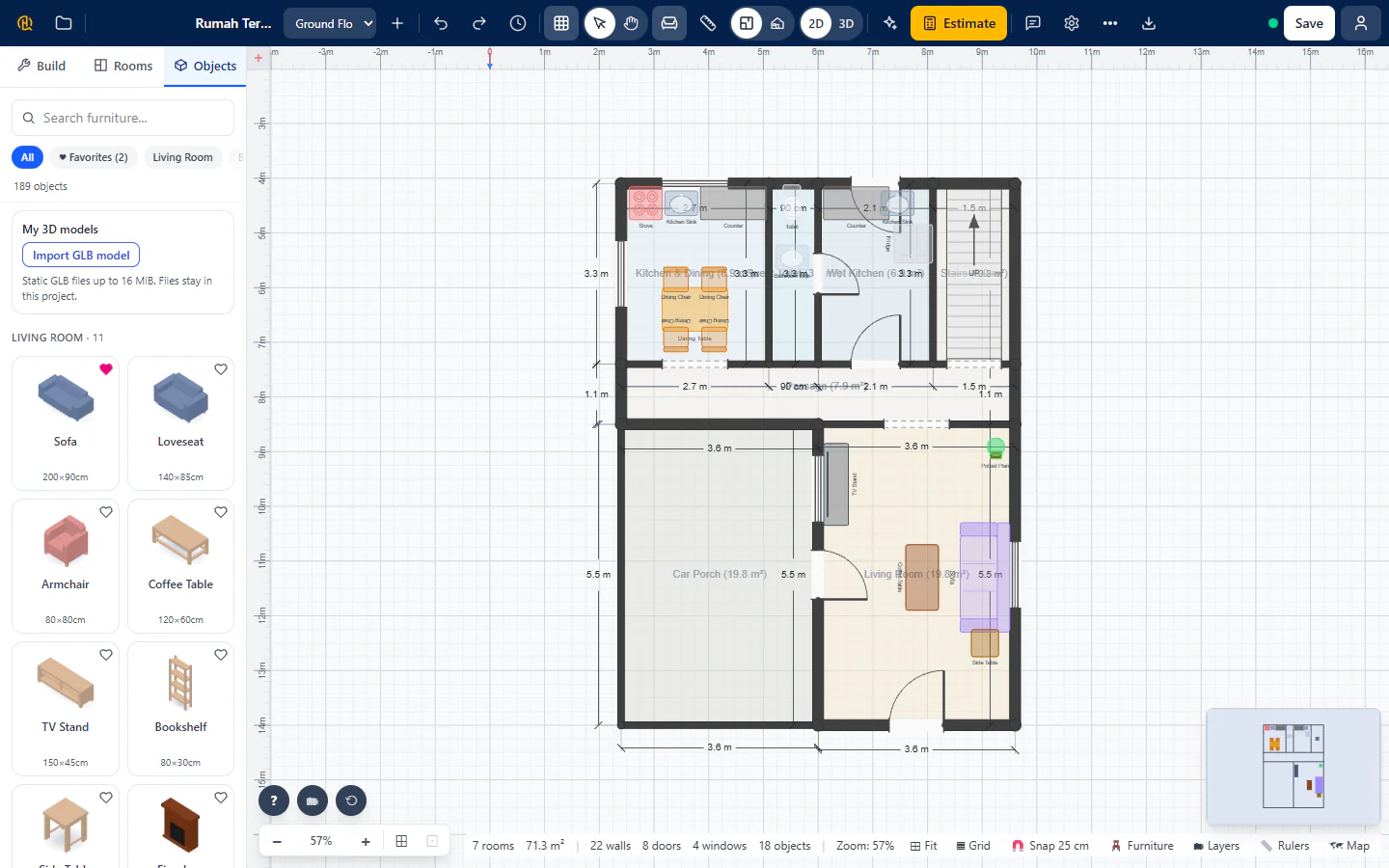
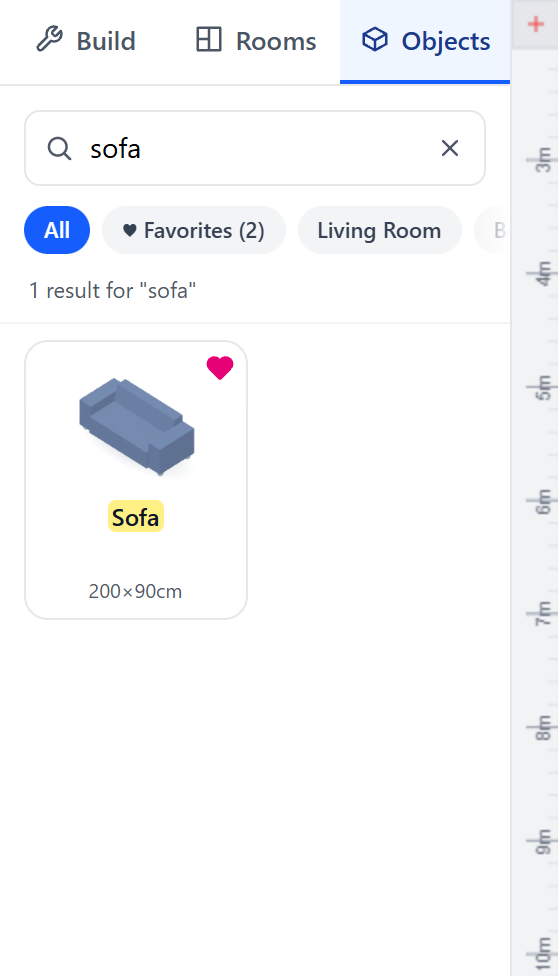
Search, and star your favourites
Type in Search furniture… (for example “sofa”) to see the matches at once. Press the star on an item to add it to Favorites.
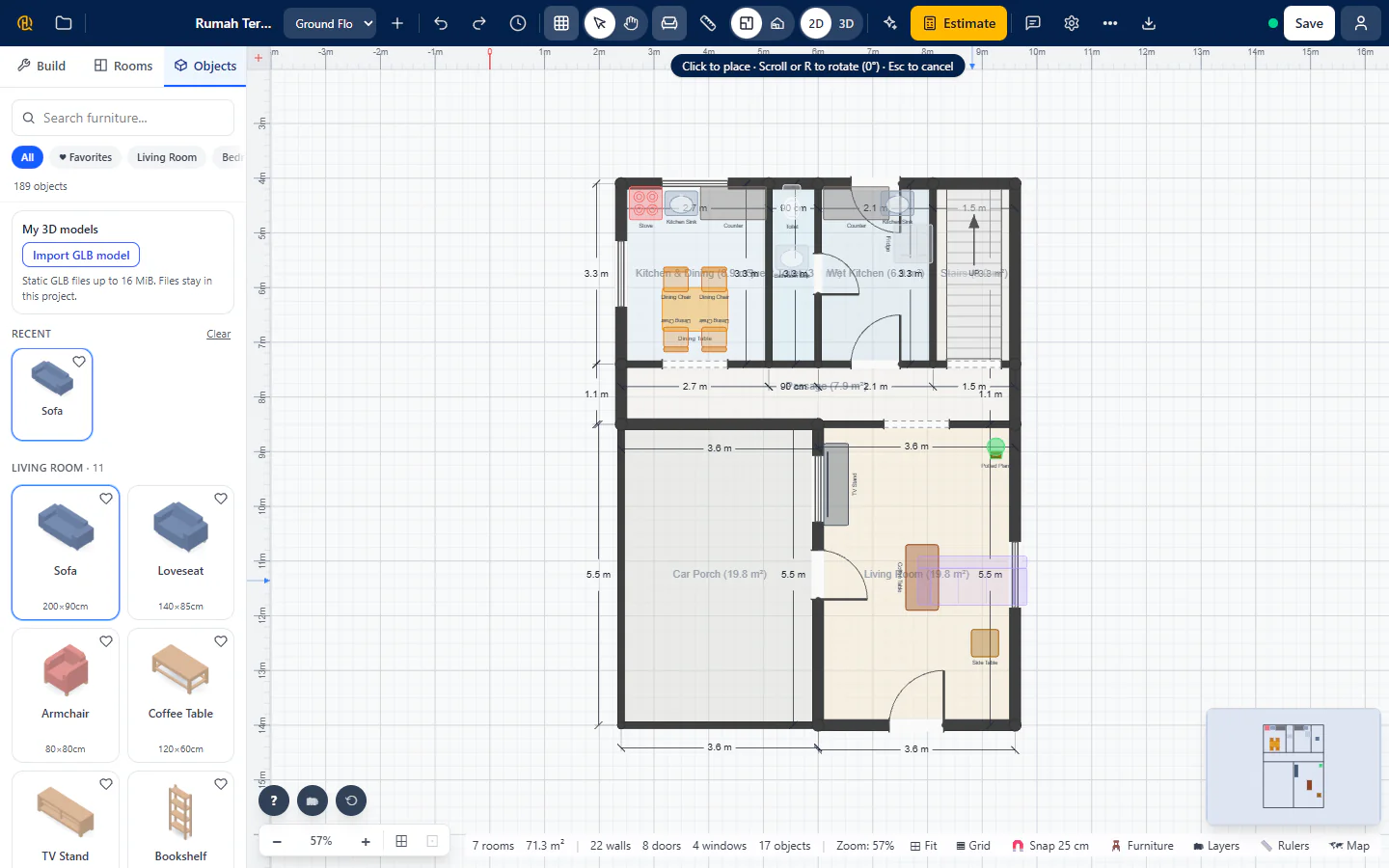
Place it
Click an item, then click the plan to put it down. While it follows the pointer, press R or scroll to rotate it. Press Esc to stop placing.
Select, move, rotate, delete
Use Select (V). Click anything to select it, drag to move, drag the handles to resize, R to rotate, Del to delete. Hold Shift and click to select several. Ctrl+C and Ctrl+V copy and paste; Ctrl+L locks an item so it cannot move by accident.
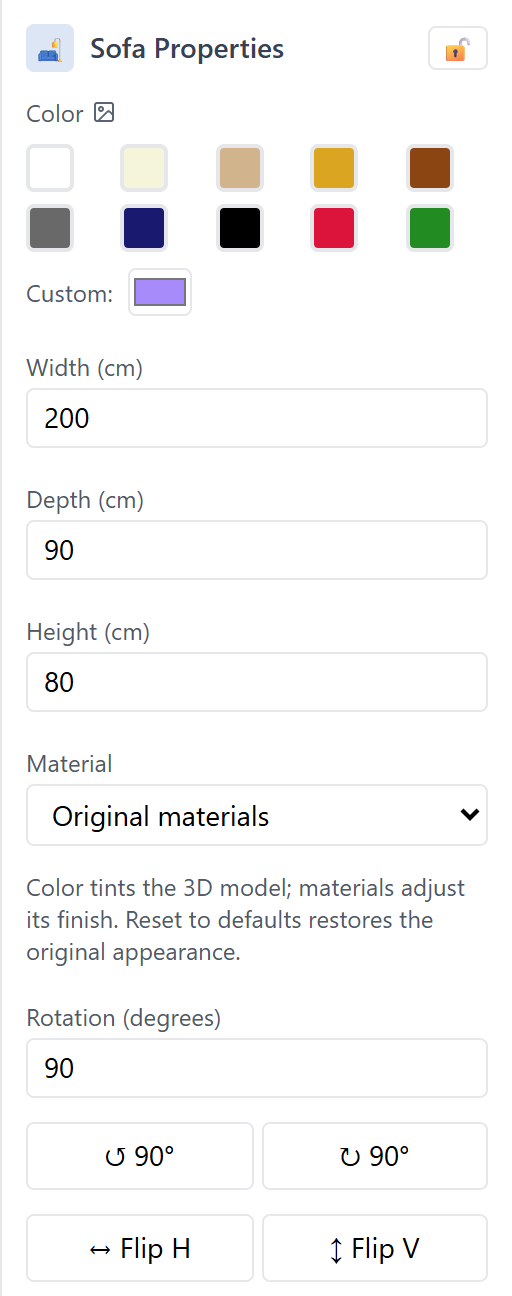
Change its properties
With an item selected, the properties panel shows its size, rotation and finish. Walls have thickness, height and material; a room has its type, name and floor finish.
Tip: press the left and right arrow keys to move between steps.
Measure and label
Dimensions, measuring and notes
Step 1 of 3
Measure a distance
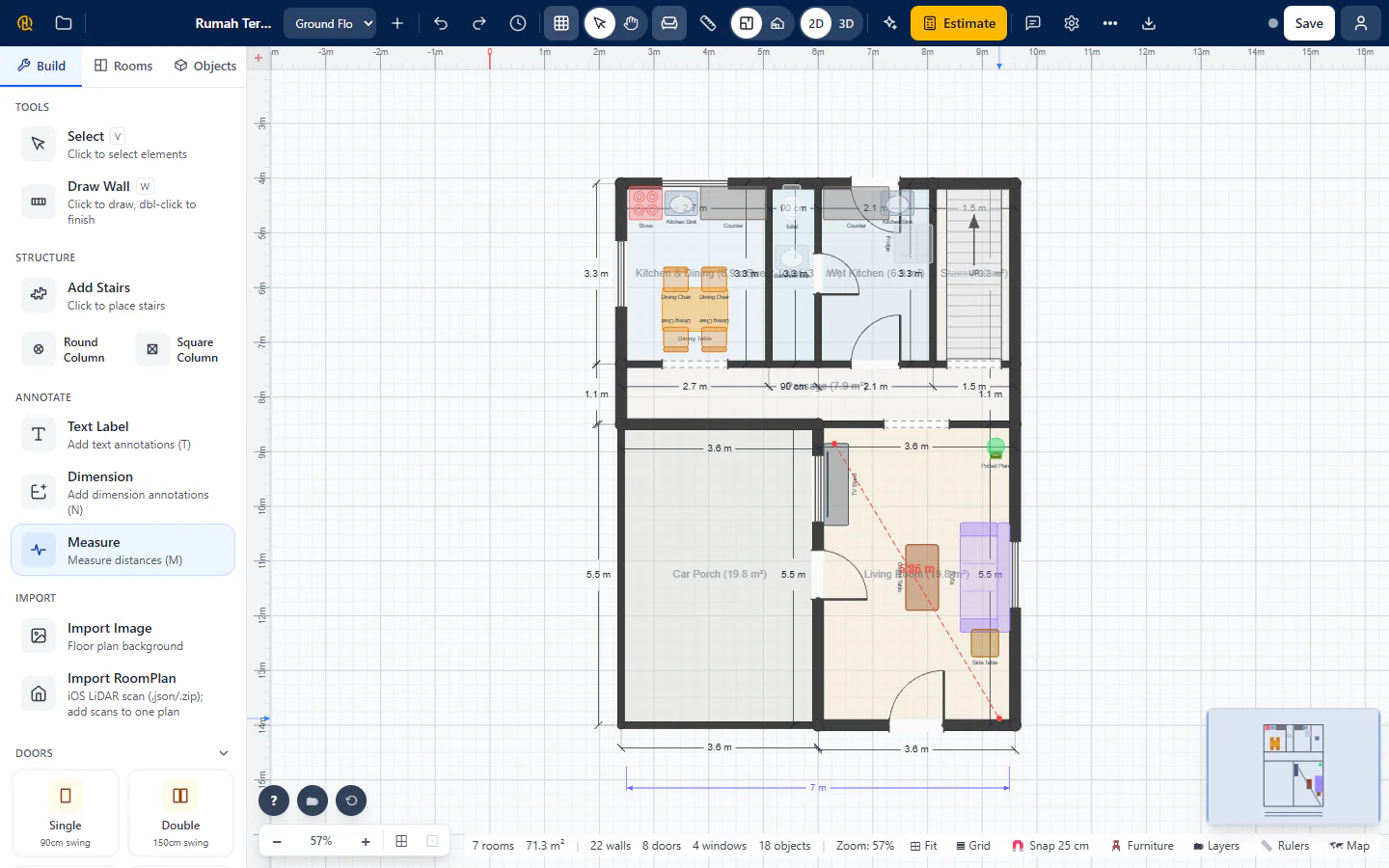
Choose Measure (M), click two points and read the distance. Nothing is left on the plan.
Leave dimensions on the plan
Choose Dimension (N), click two points and a permanent dimension label stays on the plan. Text Label (T) adds your own notes, such as “car porch”.
Snapping keeps things square
Lines snap to the grid and to nearby walls. Press S to switch between the normal and the finer step. Furniture aligns itself with nearby walls too (switch that in Settings under Wall snapping).
Tip: press the left and right arrow keys to move between steps.
Floors, layers and history
Keep a bigger plan under control
Step 1 of 5
Add more floors
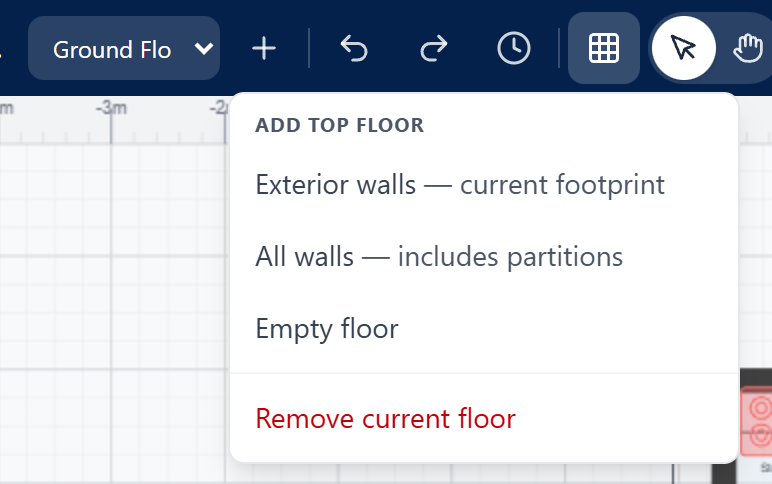
For a two-storey house use the floor controls: Add Floor (or Add Top Floor), then Switch floor. New floors can start from the exterior walls of the one below, from all its walls, or empty.
Show and hide with Layers
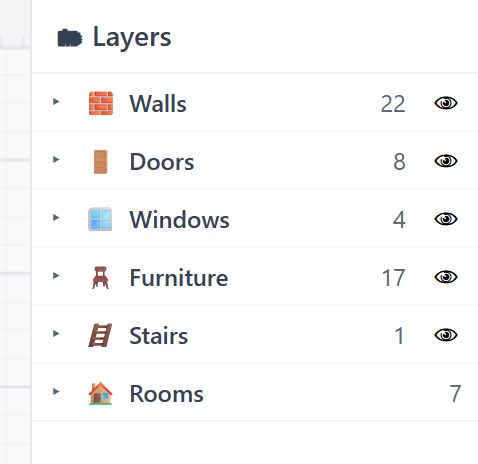
Press L or the Layers button. Switch walls, doors, windows, furniture, stairs, dimensions, notes and rooms on or off. The 2D exports and the print layout show exactly what is visible, so hiding a layer leaves it out.
Undo, redo and Undo History
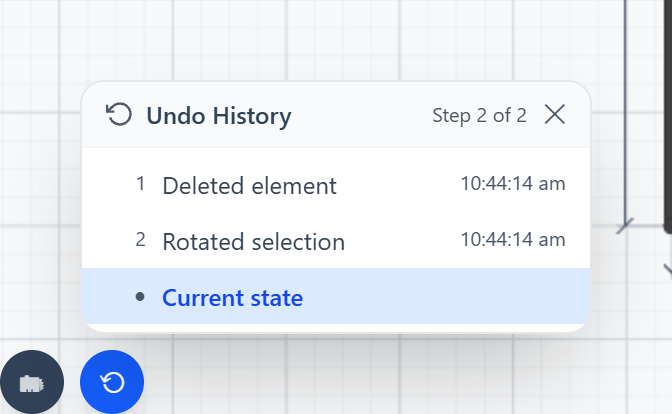
Ctrl+Z steps back and Ctrl+Y goes forward (use Cmd on a Mac). The history button opens Undo History: click any earlier step to return to that moment.
Version History: earlier saved states
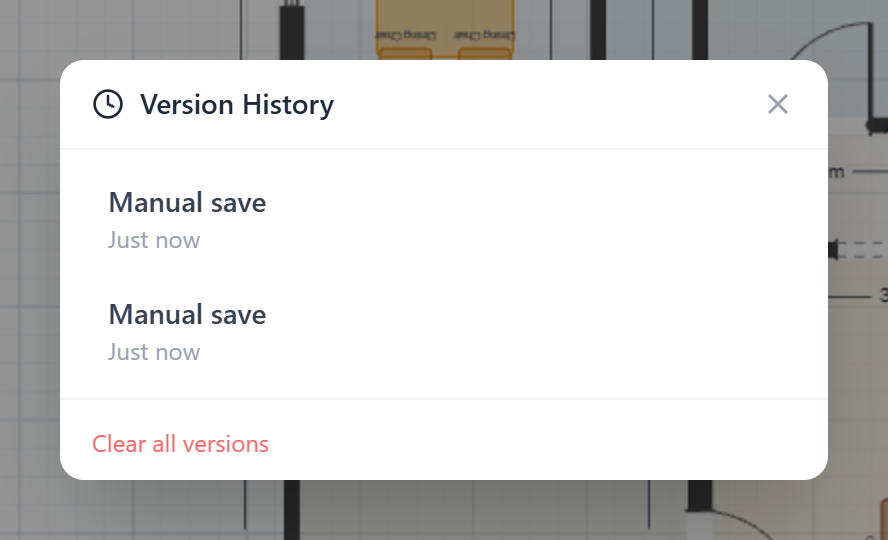
Studio keeps a snapshot of your design about every 5 minutes. Open Version History (in the header, or in the More actions menu on a small screen) and press Restore on any version. The version you replace is kept too, so you can always go back again.
Learn the shortcuts
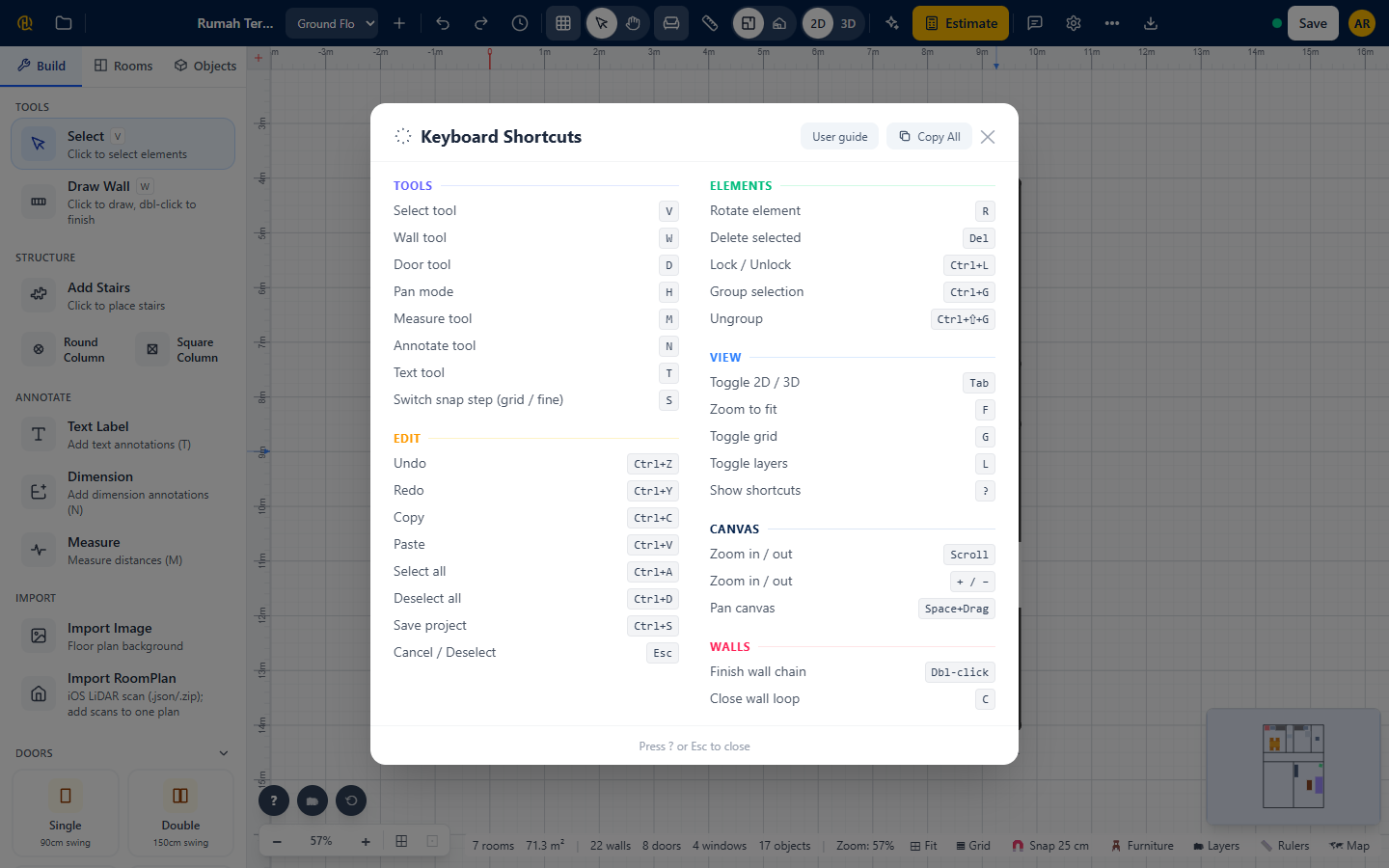
Press ? at any time to see every keyboard shortcut. The table below lists them too.
Tip: press the left and right arrow keys to move between steps.
Keyboard shortcuts
On a Mac use Cmd instead of Ctrl.
31 shortcuts shown
| Keys | What it does |
|---|---|
| Tools | |
| V | Select tool |
| W | Wall tool |
| D | Door tool |
| H | Pan mode |
| M | Measure tool |
| N | Annotate tool |
| T | Text tool |
| S | Switch snap step (grid / fine) |
| Edit | |
| Ctrl+Z | Undo |
| Ctrl+Y | Redo |
| Ctrl+C | Copy |
| Ctrl+V | Paste |
| Ctrl+A | Select all |
| Ctrl+D | Deselect all |
| Ctrl+S | Save project |
| Esc | Cancel / Deselect |
| Elements | |
| R | Rotate element |
| Del | Delete selected |
| Ctrl+L | Lock / Unlock |
| Ctrl+G | Group selection |
| Ctrl+⇧+G | Ungroup |
| View | |
| Tab | Toggle 2D / 3D |
| F | Zoom to fit |
| G | Toggle grid |
| L | Toggle layers |
| ? | Show shortcuts |
| Canvas | |
| Scroll | Zoom in / out |
| + / − | Zoom in / out |
| Space+Drag | Pan canvas |
| Walls | |
| Dbl-click | Finish wall chain |
| C | Close wall loop |
Chapter 5 of 11
See it in 3D
Orbit around your house, walk through it, change the light and look at each wall.
The 3D view builds your house from the same plan, so every change you make in 2D shows in 3D straight away. It is the best way to check proportions before anything is built.
Around, inside and up close
Step 1 of 6
Switch to 3D
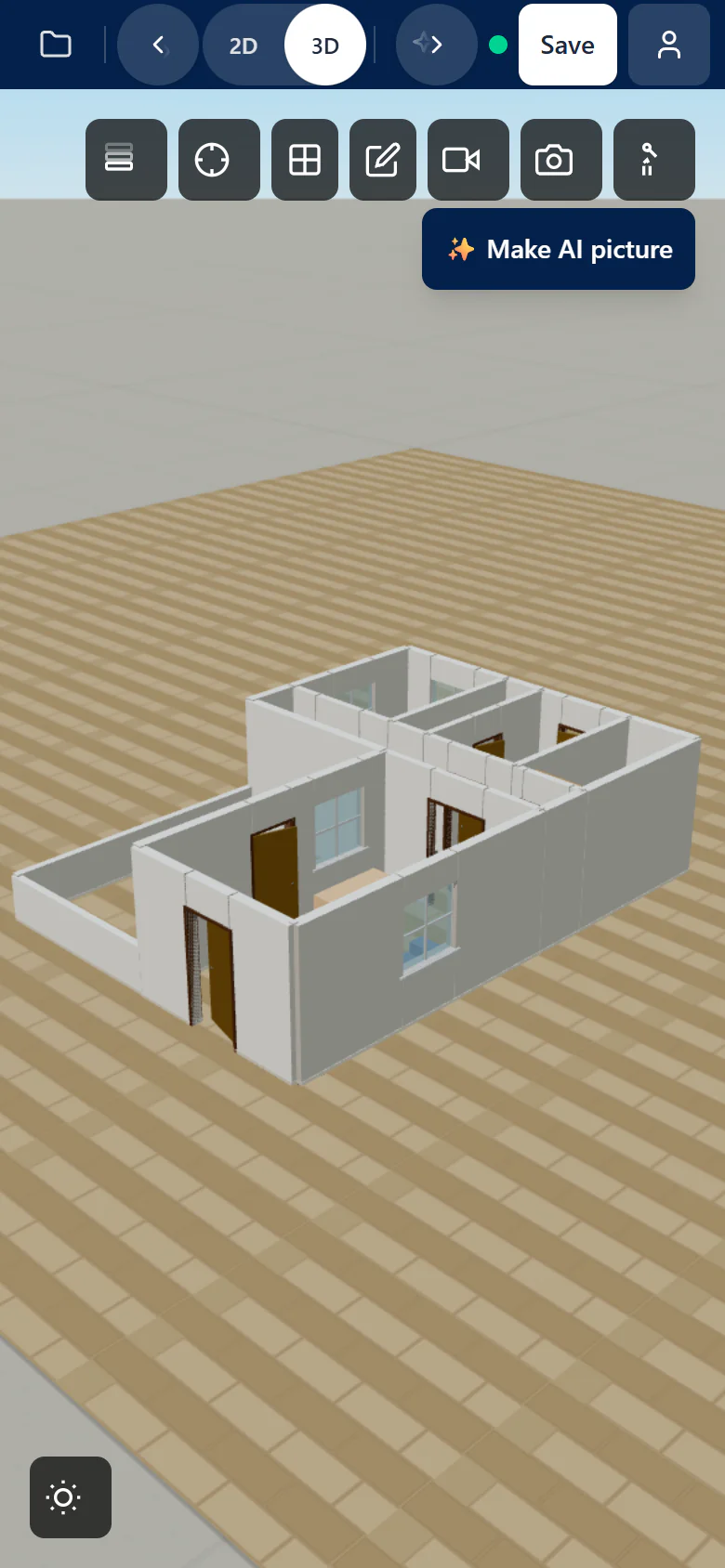
Press 3D in the header, or press Tab, to swap between the 2D plan and the 3D view. Drag to orbit, scroll or pinch to zoom, and drag with the right mouse button to pan.
View controls along the edge
The controls on the edge of the 3D view let you:
- switch between Top-Down View and the normal view;
- Show Solid Walls or Make Walls Transparent, handy to see from room to room;
- show Active Floor Only or Show All Floors Stacked in a two-storey design;
- Save 3D Screenshot to keep a picture of the current view.
Change the lighting
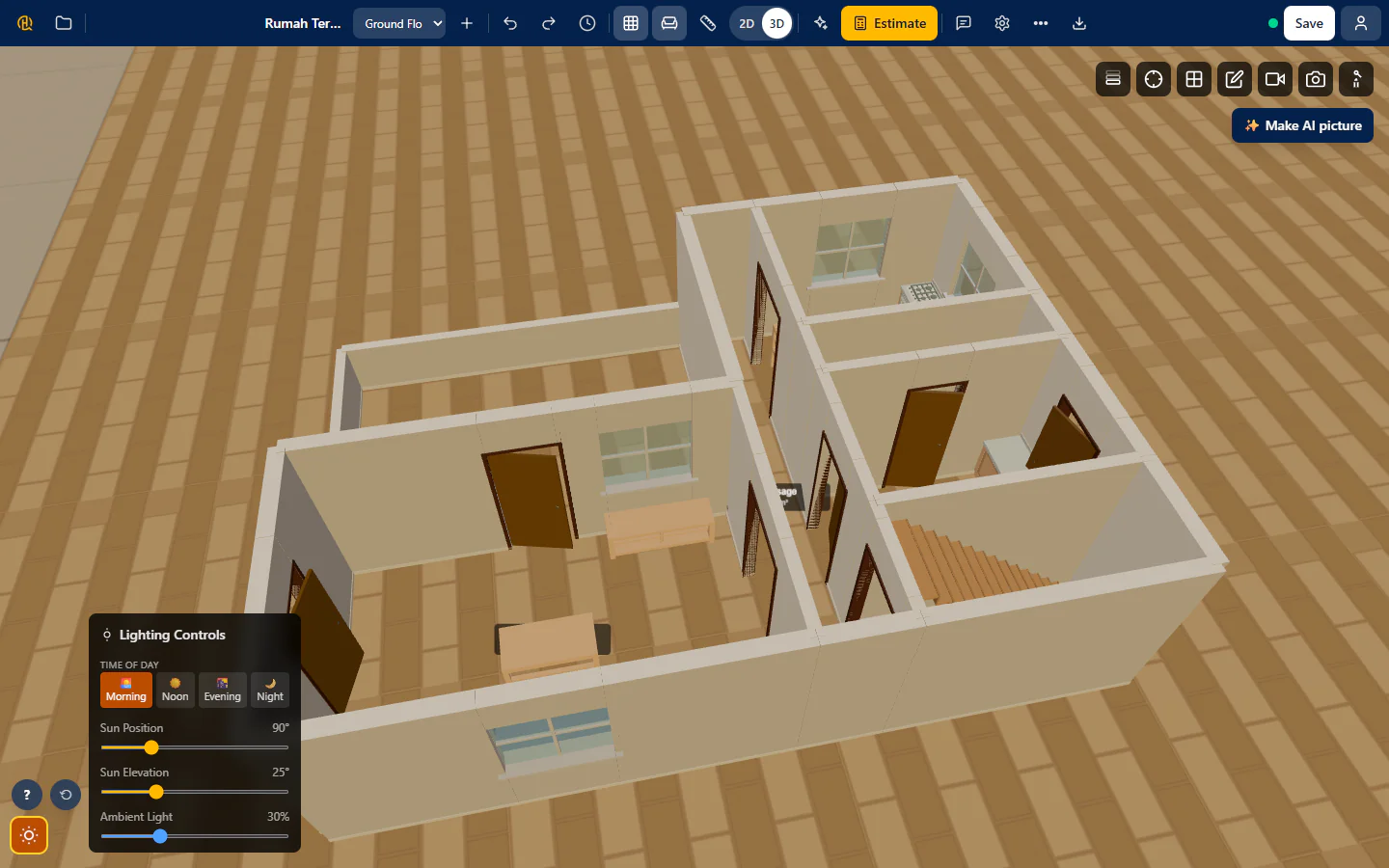
Open Lighting Controls to set the Time of Day, the Sun Position and Sun Elevation, and the Ambient Light. Morning, noon, evening and night look very different, which helps you judge where the sun comes in.
Walk inside the house
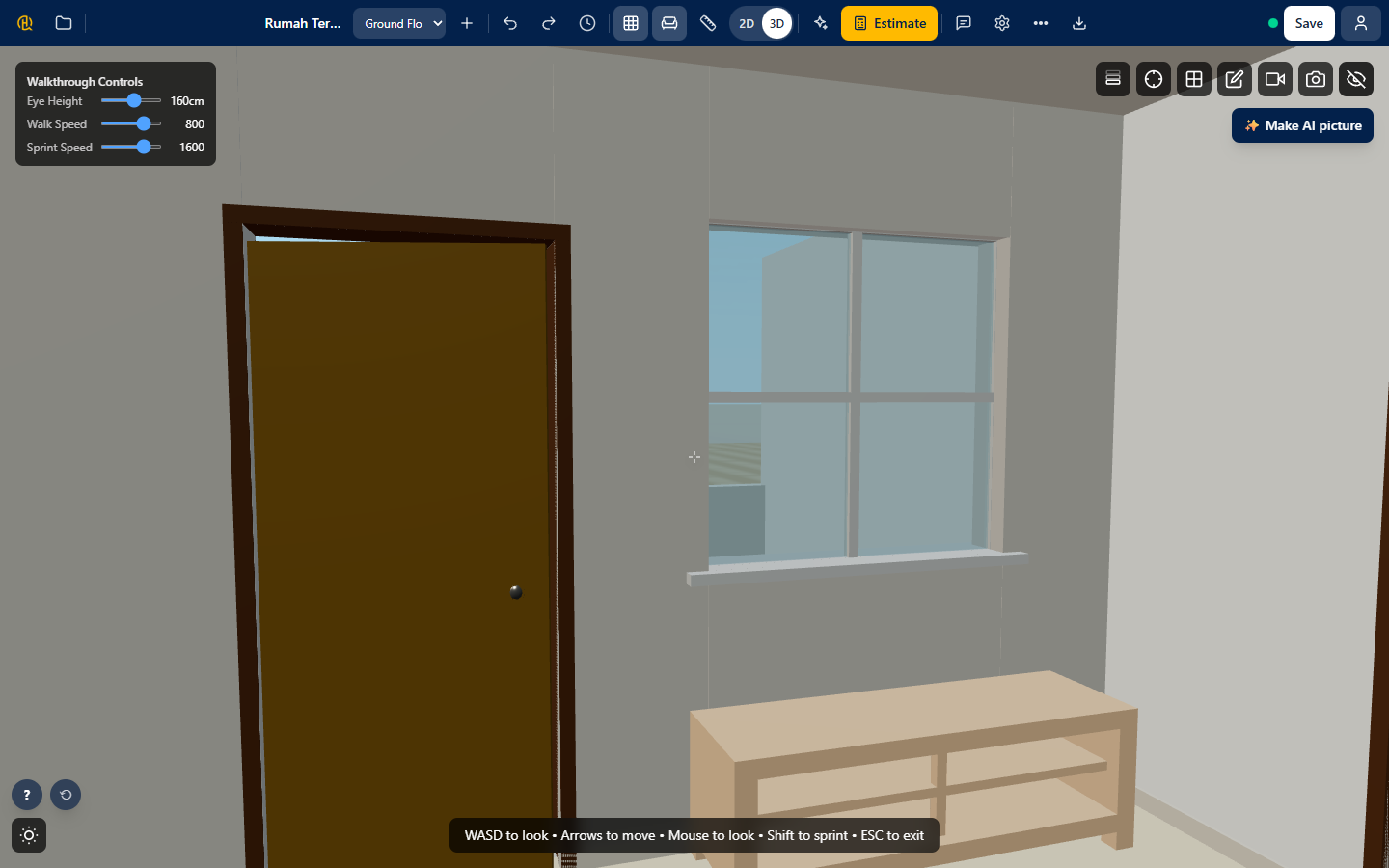
Press Place Interior Camera, click the floor where you want to stand, then click where you want to look. Press Enter Walkthrough Mode and you are inside. Use W A S D to look and the arrow keys to move, the mouse to turn your head, Shift to sprint and Esc to leave. Walkthrough Controls change eye height, walk speed and sprint speed.
Look at one wall: elevation view
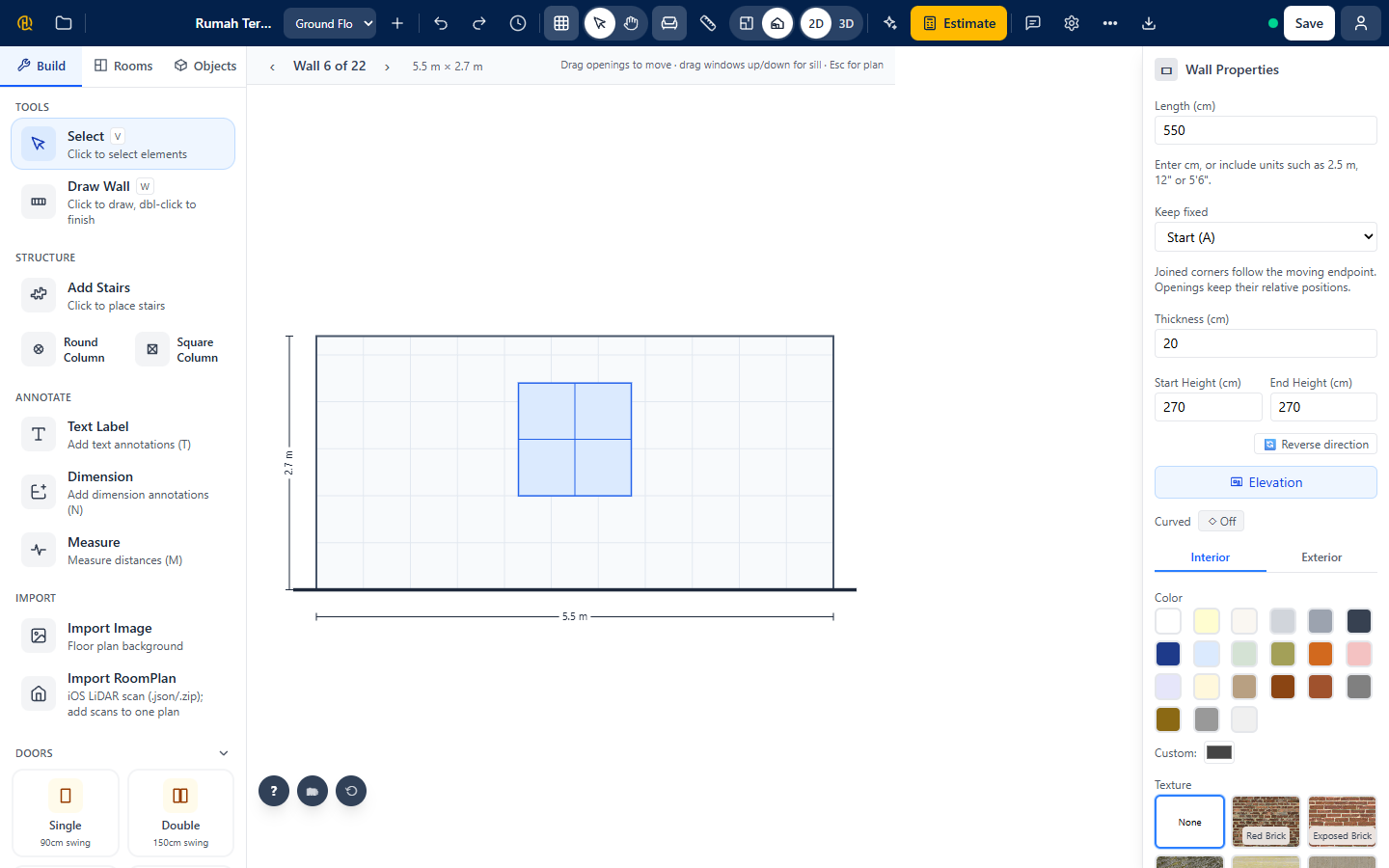
Back in 2D, choose Elevation View in the view controls and pick a wall on the plan. You see that wall face-on, with its doors and windows. Drag an opening to move it, and drag a window up or down to change its sill height. Use Previous wall and Next wall to go round the house, and Esc to return to the plan.
On a phone
Drag with one finger to orbit and pinch to zoom. Walkthrough Mode works here too: drag the view to look around and the joystick (bottom right) to walk. Walking is still easier with a keyboard, so on a phone we suggest orbiting around the outside first.
Tip: press the left and right arrow keys to move between steps.
👀 What you will see
Your walls, doors, windows and furniture in 3D, with shadows that follow the time of day you chose.
Chapter 6 of 11
Cost estimate and BQ
A cost range, where the money goes, the whole Bill of Quantities and a PDF by e-mail.
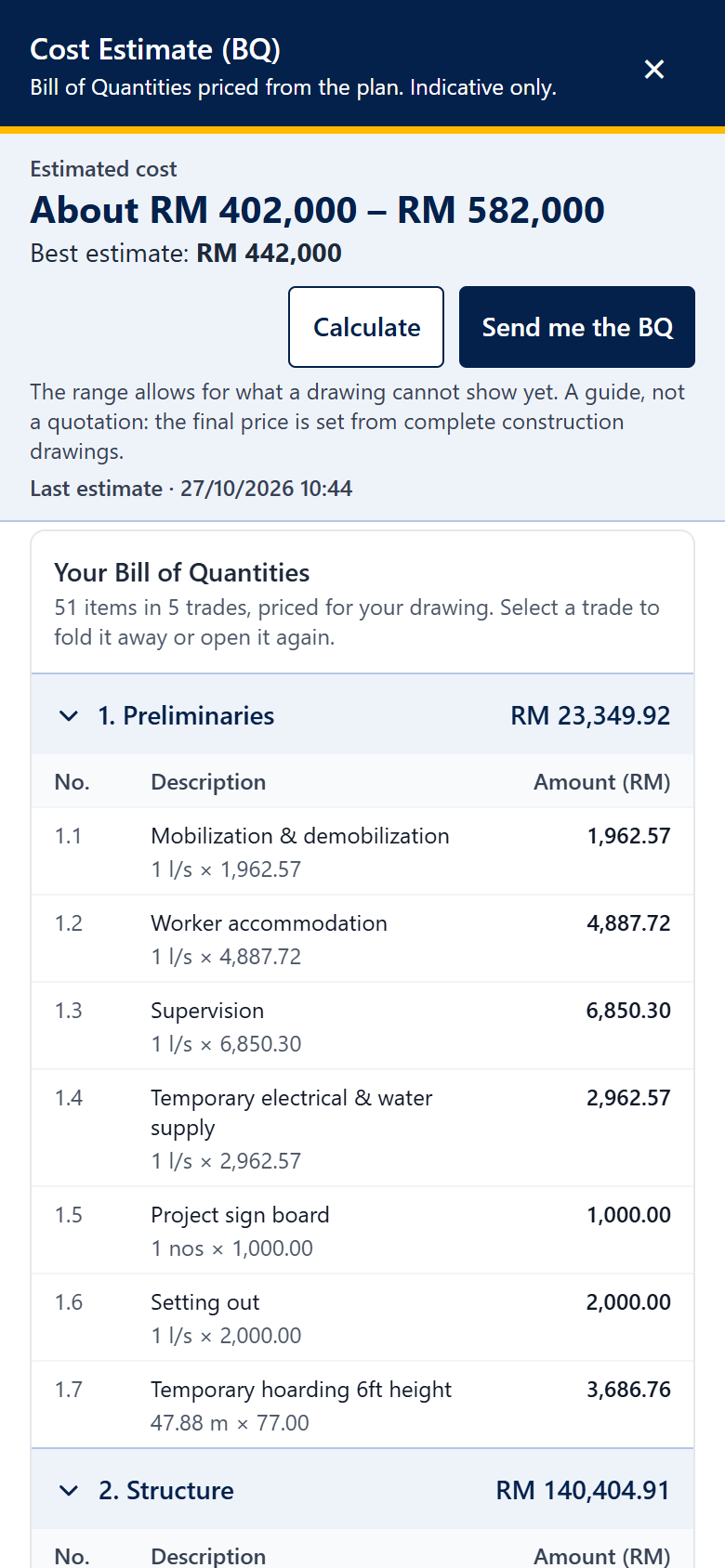
Studio prices the plan you drew. You get an estimated cost range, a split by trade, and your whole Bill of Quantities item by item on screen. A PDF copy with a reference number is e-mailed to you.
Draw at least one room or wall first: the estimate is built from the plan. Studio asks you to sign in the first time (Chapter 2).
From plan to BQ in your inbox
Step 1 of 11
Open the cost estimate
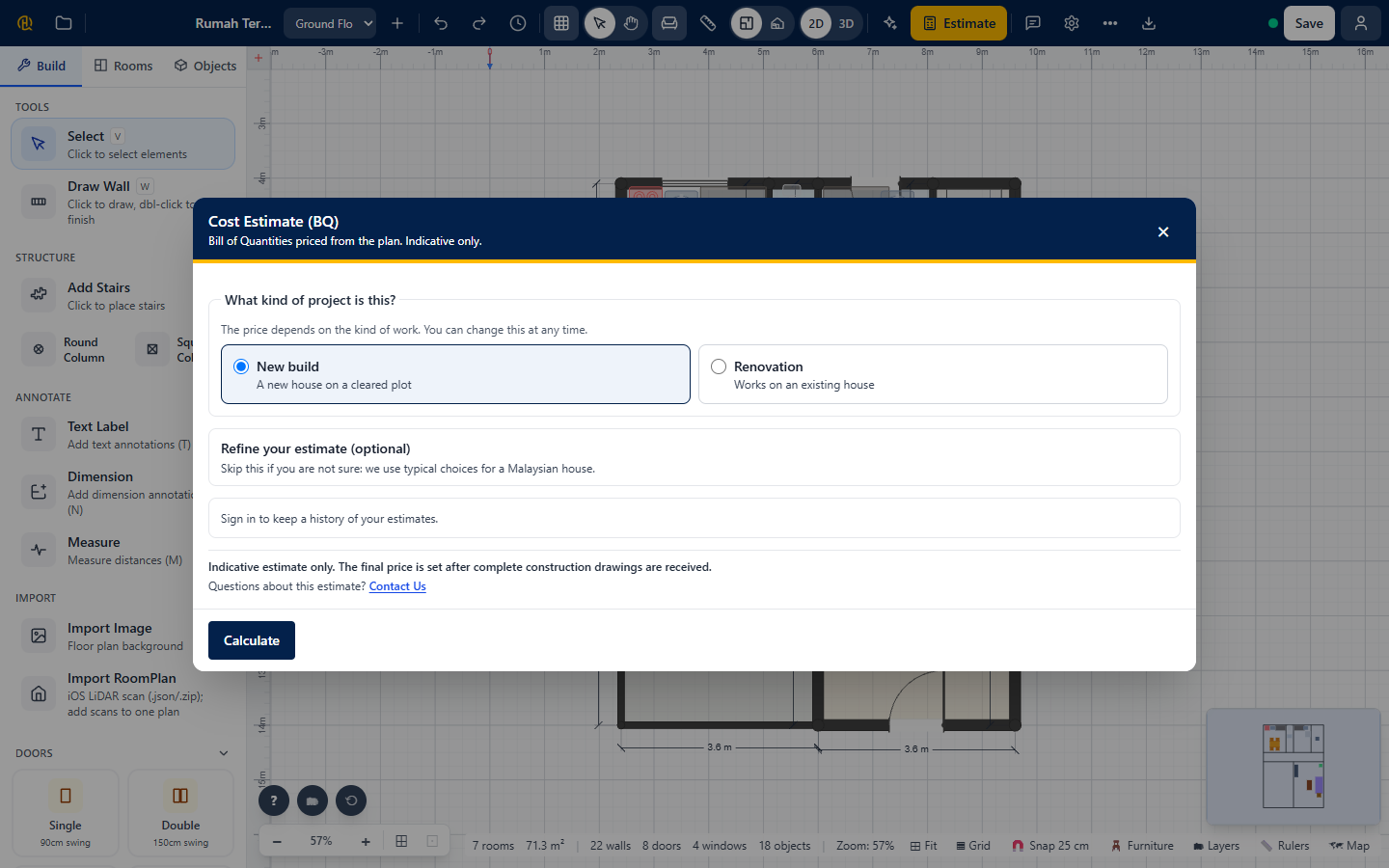
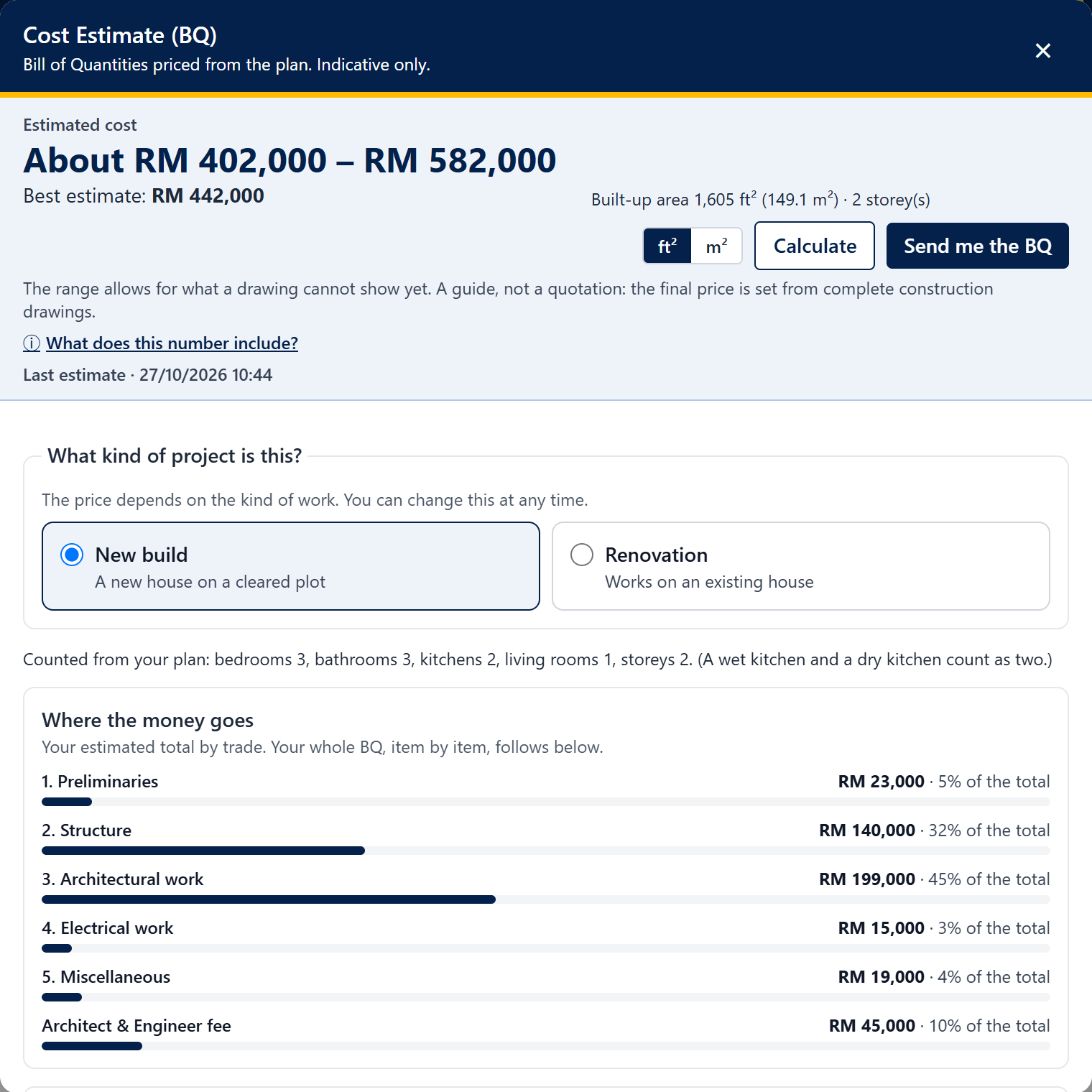
Press Estimate in the header (or choose Cost estimate (BQ) in the Export menu). The panel Cost Estimate (BQ) opens next to the plan. First choose the project type: New build (a new house on a cleared plot) or Renovation (works on an existing house). The price changes with the type, and you can switch at any time.
Refine it (optional)
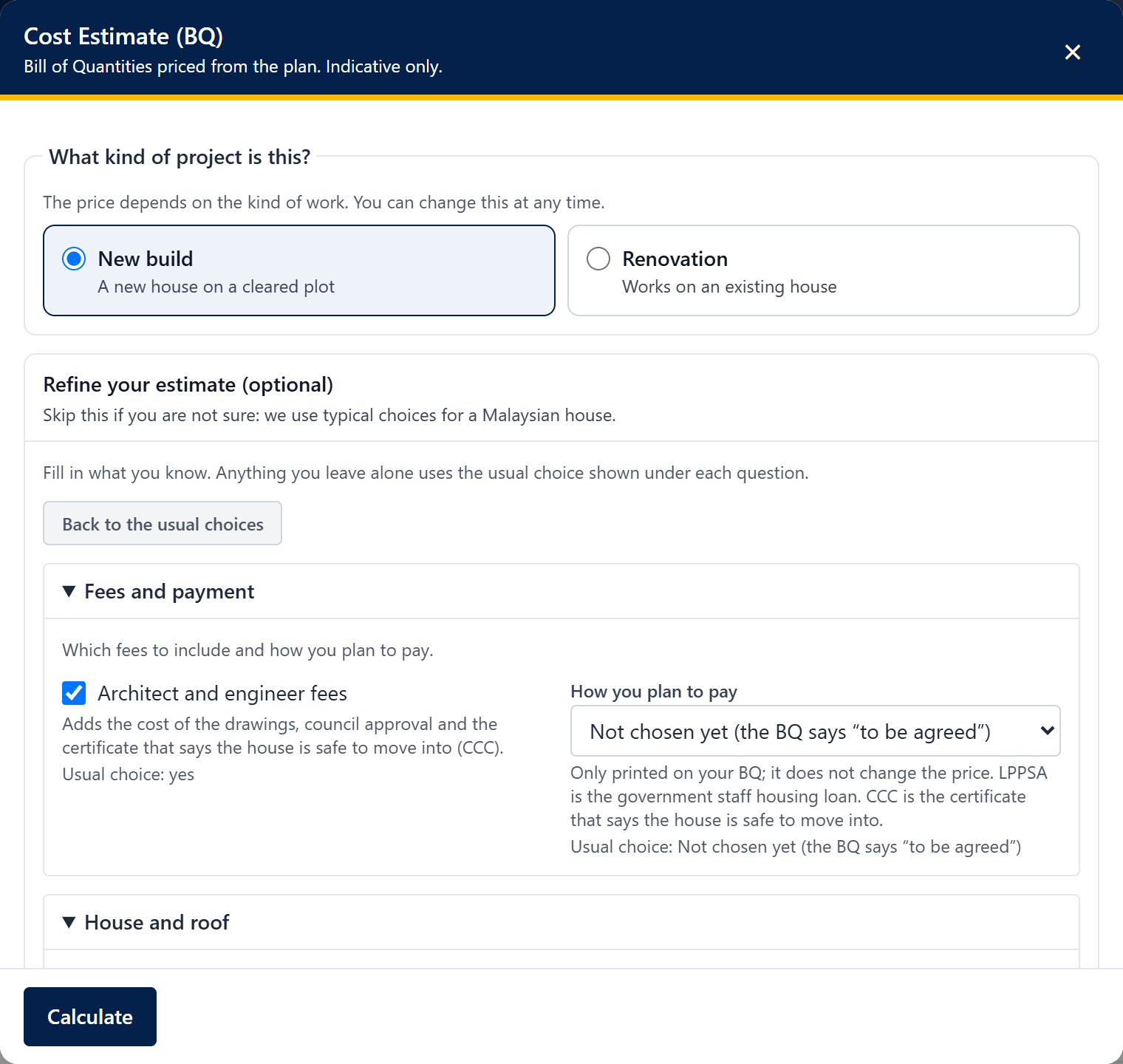
Open Refine your estimate (optional) to say what you know: architect and engineer fees, the roof material, lot size and extras such as a rainwater tank. Anything you leave alone uses the usual choice for a Malaysian house, shown under each question.
Press Calculate
Studio reads your plan (bedrooms, bathrooms, kitchens, living rooms and storeys) and shows Estimated cost, a range such as “About RM 250,000 – RM 310,000”, with a Best estimate. The range allows for what a drawing cannot show yet.
See where the money goes
Where the money goes splits your estimated total by trade (preliminaries, structure, architectural work, electrical work and so on) with the share of each. Below it, Not included in this estimate and What this estimate assumes tell you what the number leaves out, such as land, authority fees and furniture.
Read your whole BQ
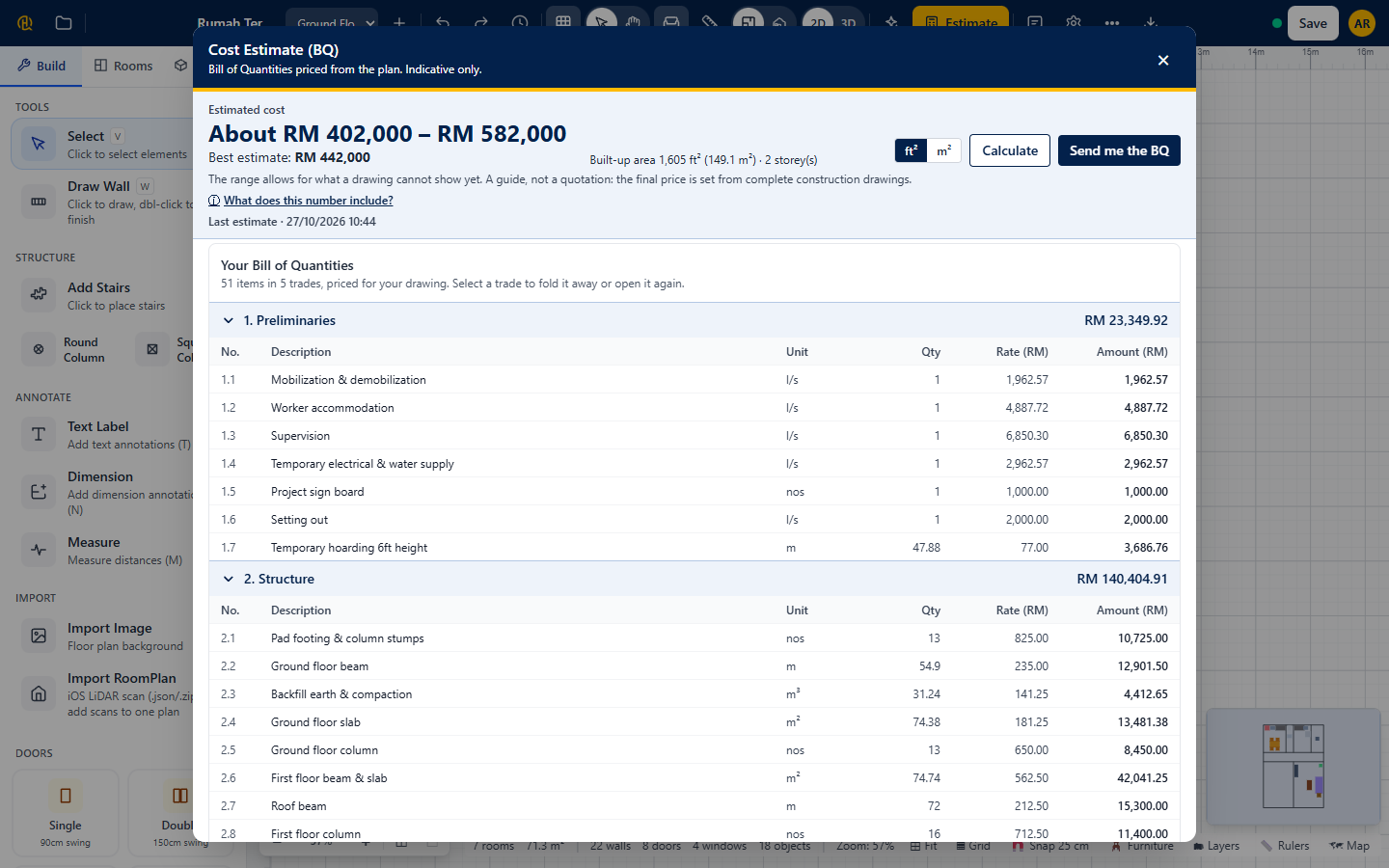
Under Your Bill of Quantities every item of work is listed by trade, with No., Description, Unit, Qty, Rate (RM) and Amount (RM). Each trade can be folded away and shows its subtotal. A line that cannot be priced yet says “To be priced” and is not in the total.
Check the totals
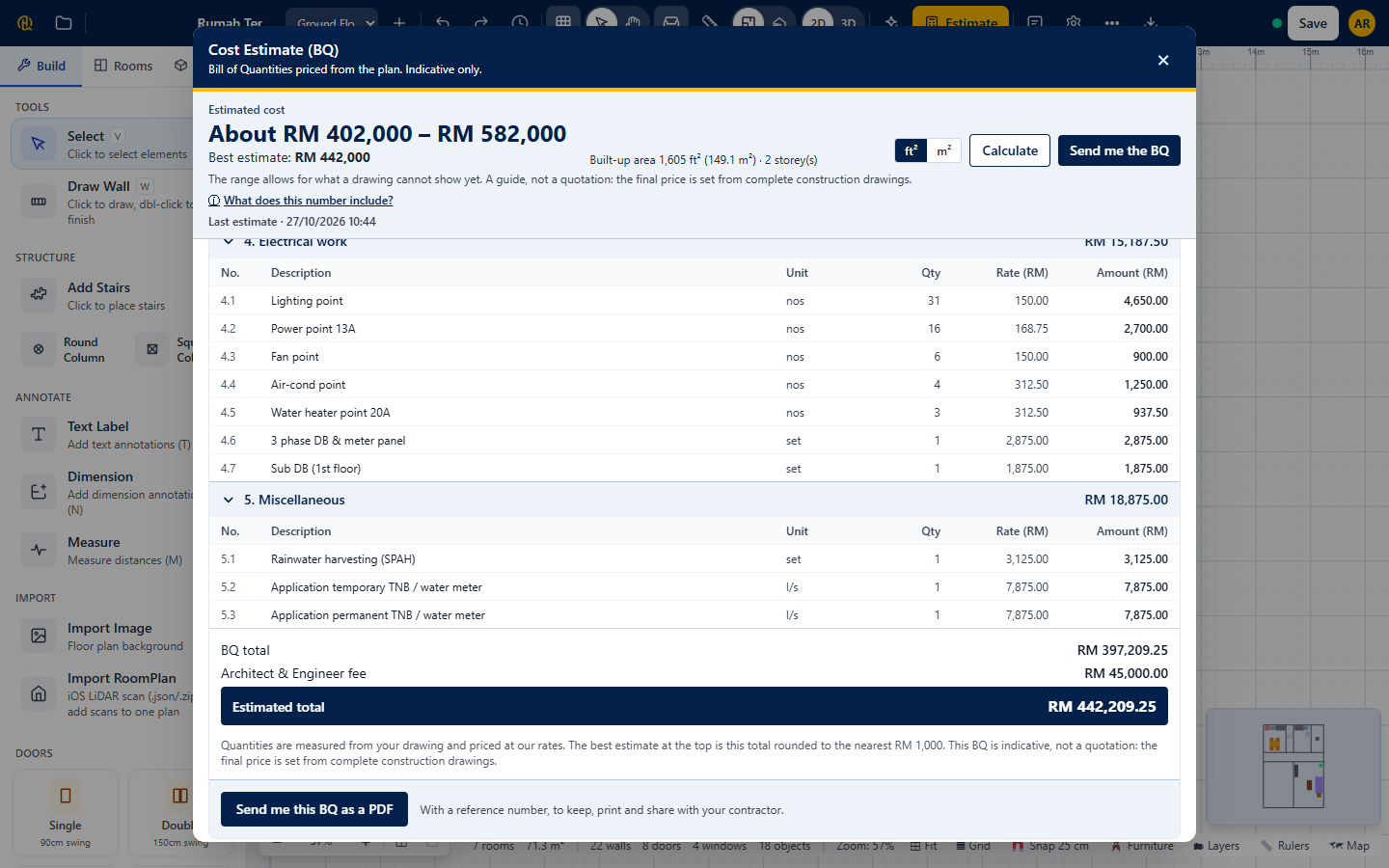
At the foot of the BQ you see the BQ total, the Architect & Engineer fee and the Estimated total, all to the sen. The Best estimate at the top is this total rounded to the nearest RM 1,000. Happy with it? Press Send me this BQ as a PDF right there.
Ask for the PDF by e-mail
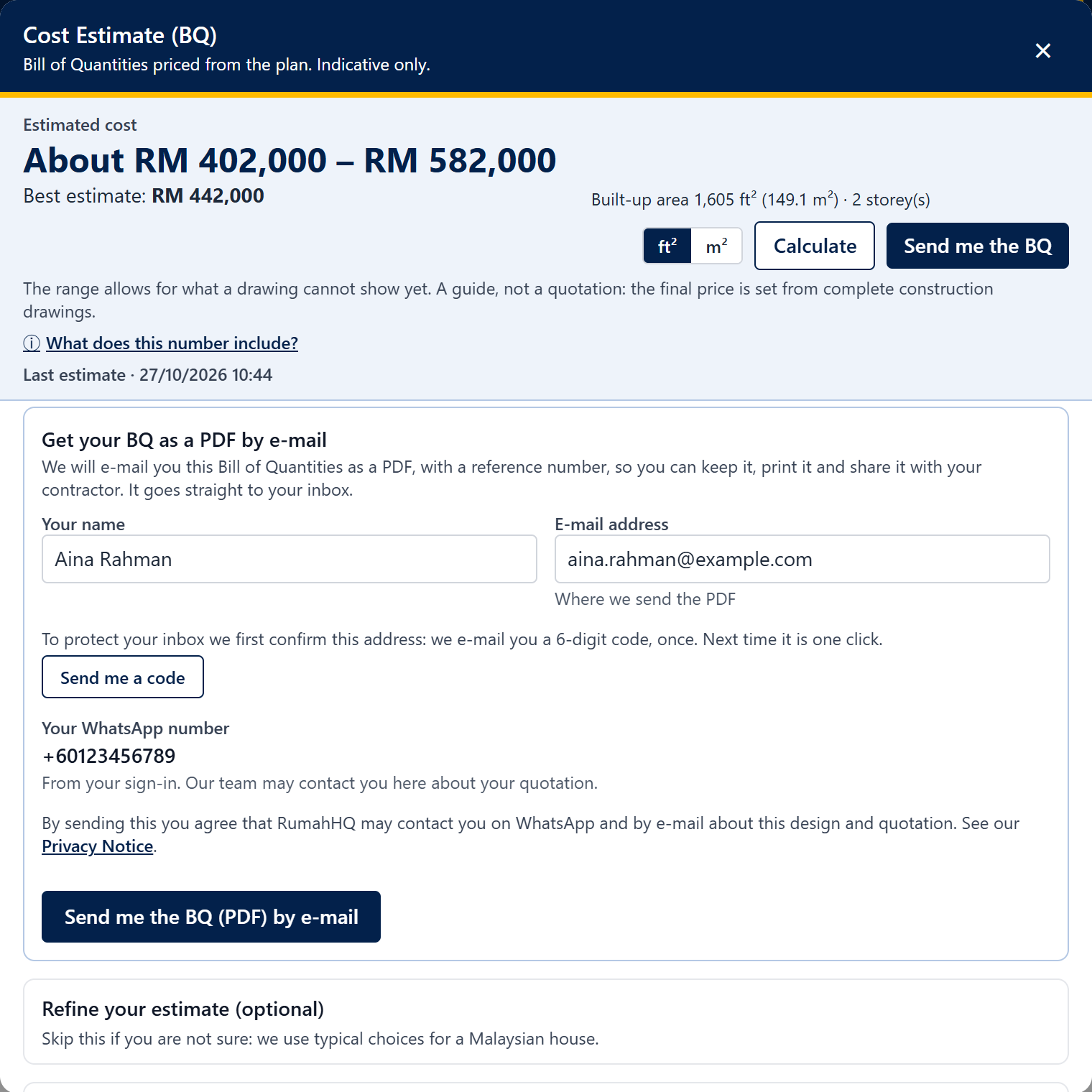
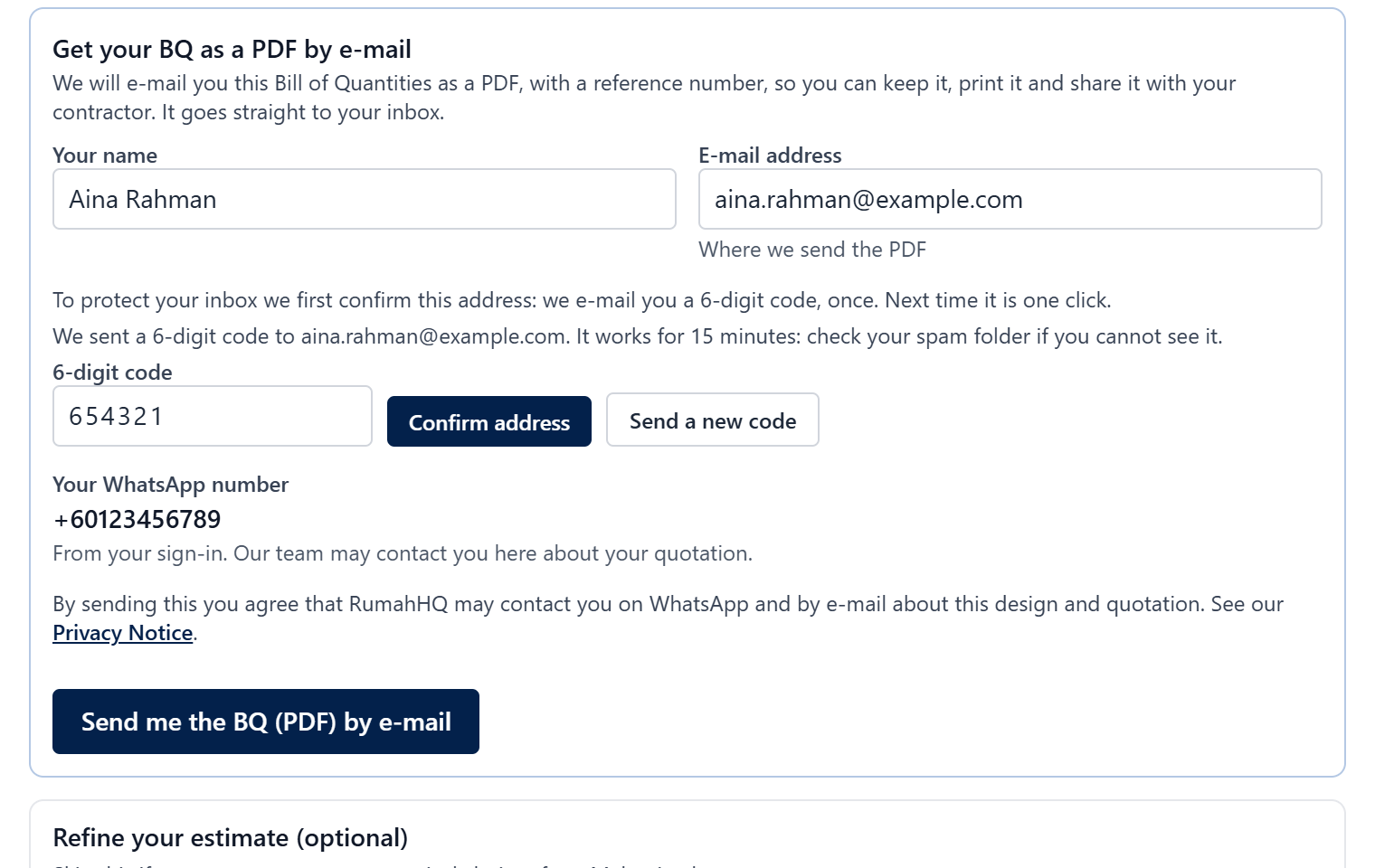
Press Send me the BQ, or Send me this BQ as a PDF under the table. The form asks for your name and e-mail address, shows your WhatsApp number from your sign-in, and asks for your consent for RumahHQ to contact you about this design and quotation.
Confirm your e-mail address (first time)
Studio only sends the BQ to an address you have confirmed. Press Send me a code, open the 6-digit code in that inbox (it works for 15 minutes), type it and press Confirm address. It is a one-time check: the next BQ is one click.
Press send, and keep the reference
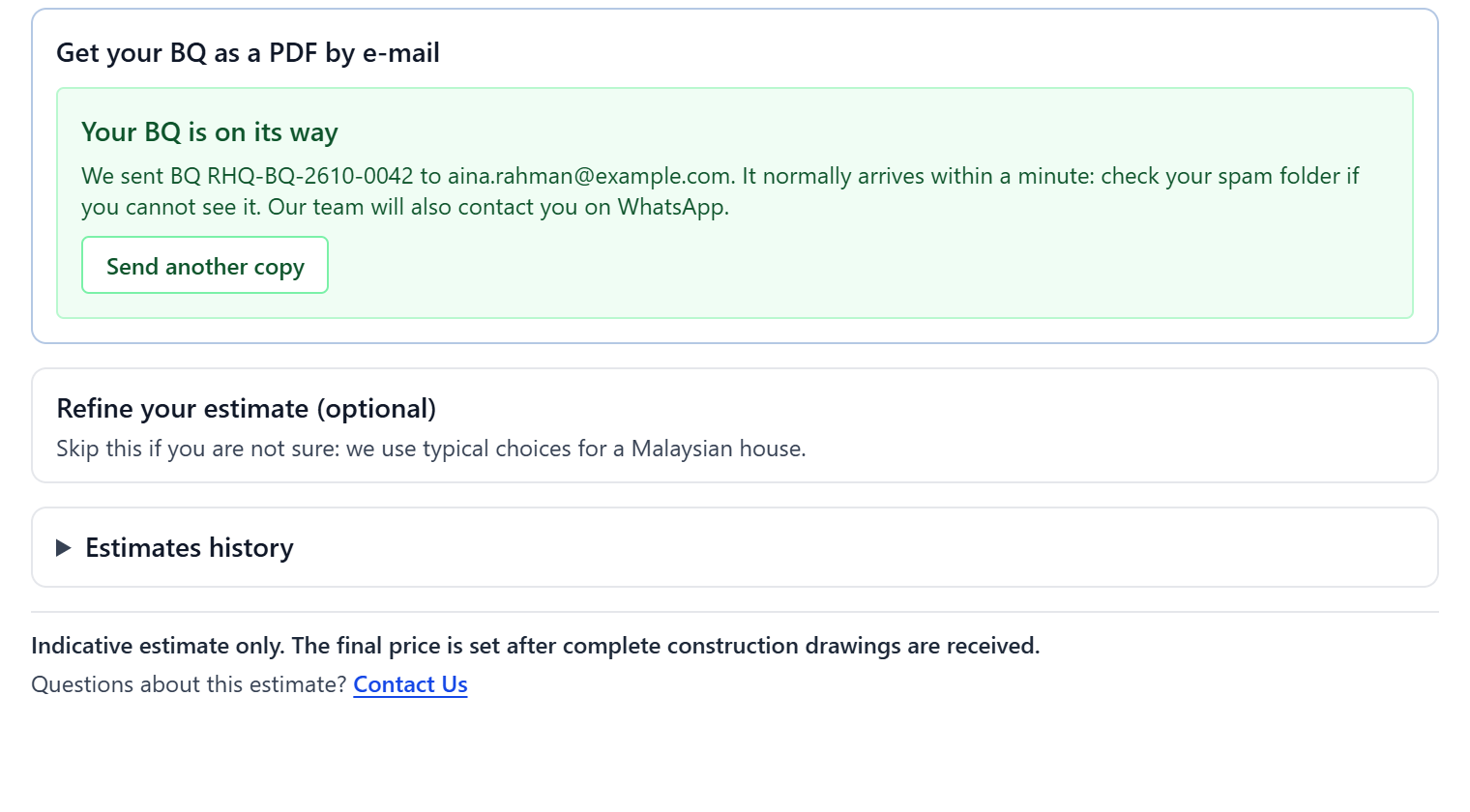
Press Send me the BQ (PDF) by e-mail. Your BQ is on its way appears with your reference number, for example RHQ-BQ-2610-0001. The e-mail normally arrives within a minute; check the spam folder if not. Quote the reference whenever you write to us.
What the PDF contains
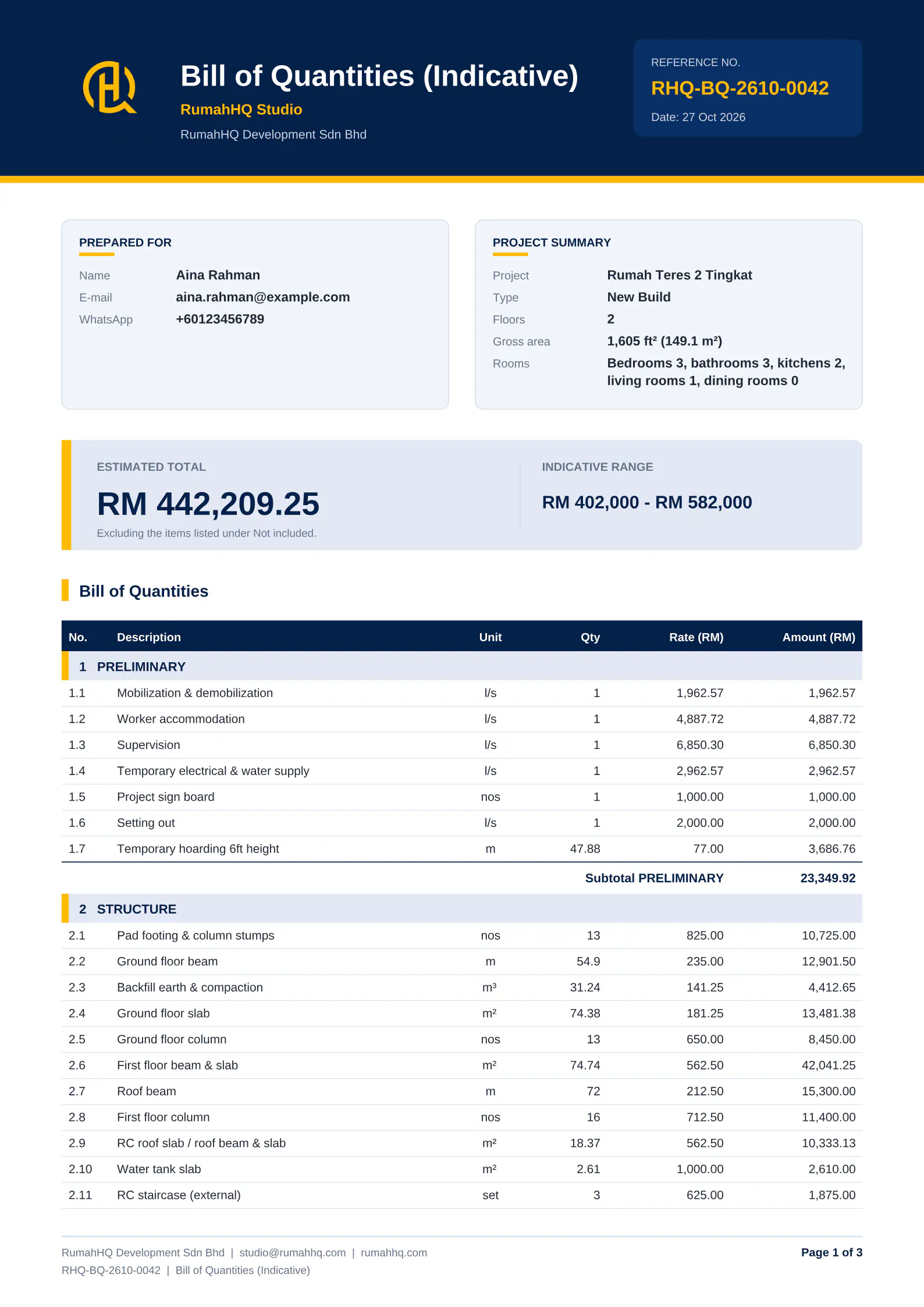
The PDF is the formal copy to keep, print and share with your contractor. It has the reference number and date, who it was prepared for, a project summary, the full BQ with section subtotals and the estimated total, what is not included, assumptions and notes, how long it stays valid, and an Important note that it is an indicative estimate and not a quotation, offer or contract.
Come back to earlier estimates
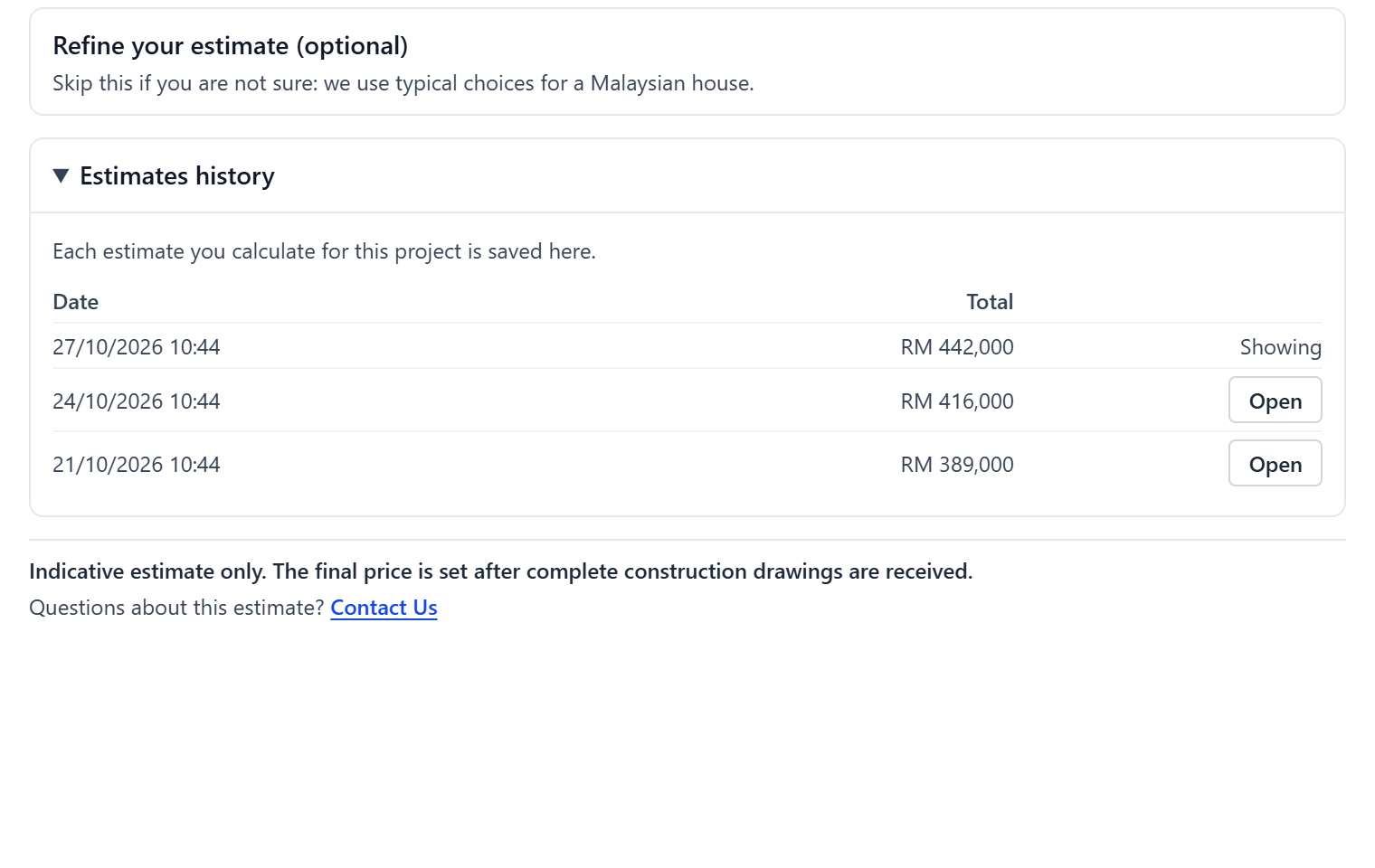
Every estimate you calculate is saved. Estimates history lists them with date and total: press Open to see one again. If the plan has changed since, the panel tells you the estimate is out of date: press Calculate again.
Tip: press the left and right arrow keys to move between steps.
🚫 Common mistakes
- Forgetting to label the rooms. Bedrooms, bathrooms and kitchens are counted from the room types, so label each room honestly.
- Expecting the PDF to follow the screen after you edit. The BQ is made from your drawing as it is now: press Calculate again first.
- Looking in the wrong place. If the e-mail is late, check spam, then press Send another copy or contact us.
Chapter 7 of 11
Save and manage your designs
Keep designs in your account, open them anywhere and bring back what you deleted.
Studio keeps your work on your device as you go; the save indicator in the header tells you when it is safe. To open it on another phone or computer, save it to your account.
Save, find, restore
Step 1 of 6
Save to your account
Press Save. If you are not signed in, Studio asks you to sign in first. Afterwards it offers to save the designs already on your device: choose Save to my account. From then on your designs are on your account and on this device, with earlier versions kept.
My designs
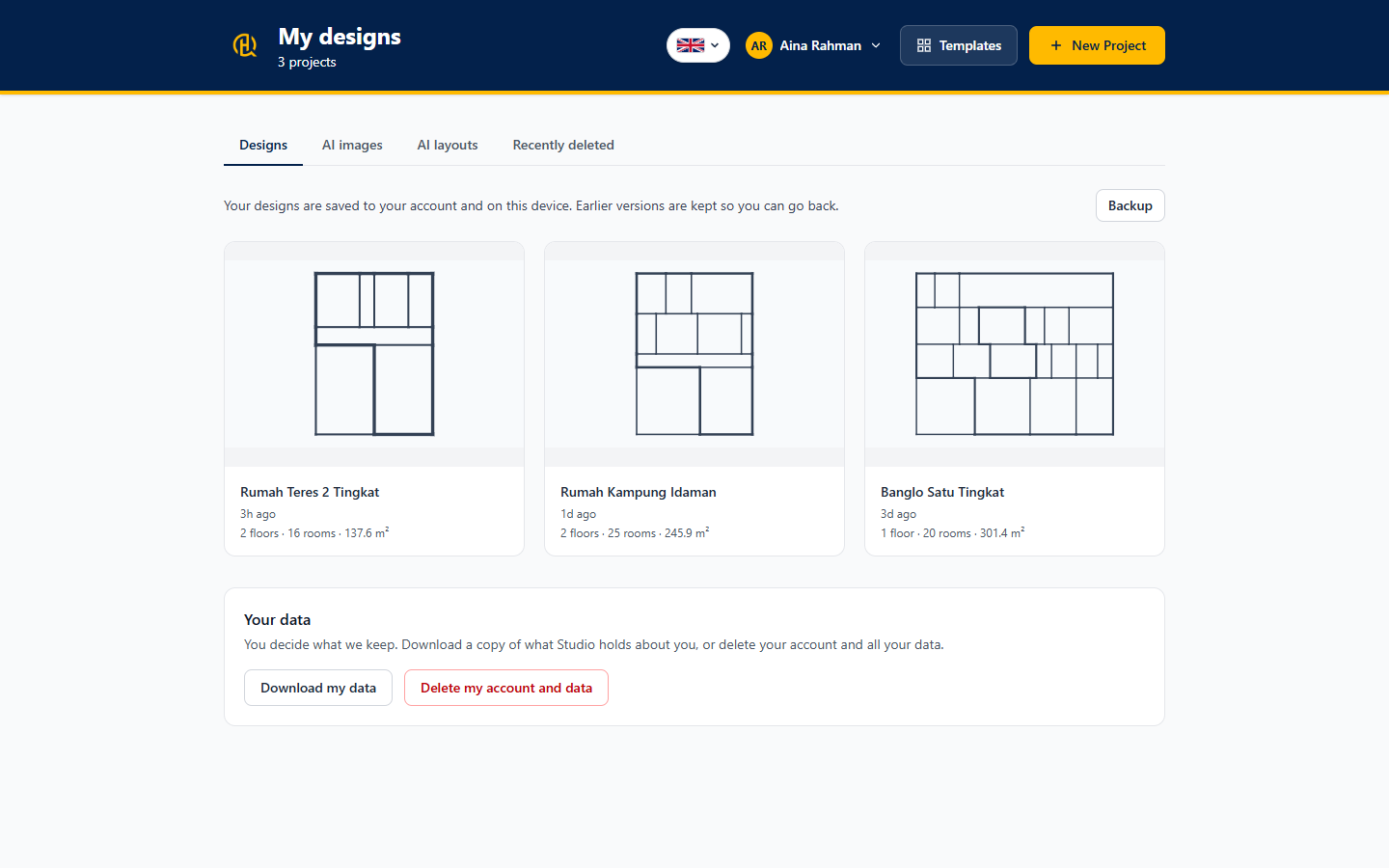
Open My designs from the account button (or go to /designs). Each card shows the name, a preview and the basics: floors, rooms and area. Click one to open it.
Four tabs
The tabs split your work:
- Designs: your floor plans.
- AI images: pictures made with AI Render. Download or delete them.
- AI layouts: every draft the AI made, with the brief that made it.
- Recently deleted: designs you deleted, kept for 90 days.
AI images
Your AI pictures wait here, saved for you. There is a limit on how many you can keep, so delete the ones you no longer need.
Undo a delete, restore a version
A deleted design waits in Recently deleted for 90 days with its version history: press Restore to bring it back. Each design also has a Version history to go back to an earlier saved state.
My data
Open My data from the account menu to Download my data or Delete my account and data. You decide what we keep.

Tip: press the left and right arrow keys to move between steps.
Chapter 8 of 11
Export and share
Pictures, drawings, PDF and project files, and how to share your BQ.
The Export menu in the editor header hands your design to other people and other tools.
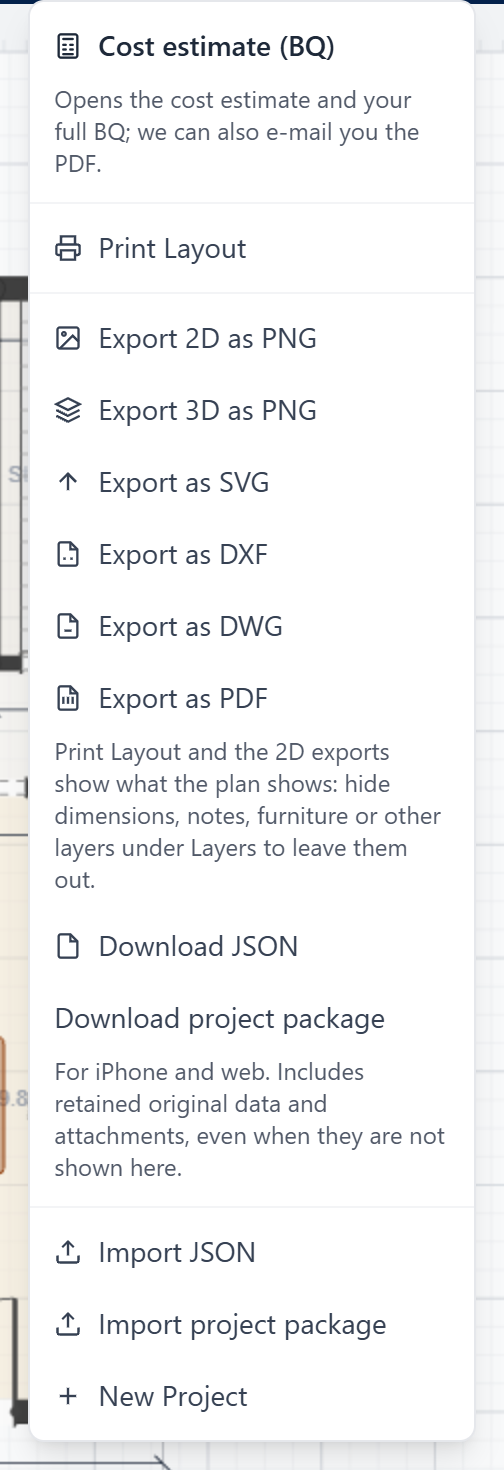
- Export 2D as PNG and Export 3D as PNG: pictures for a message or a presentation.
- Export as SVG, Export as DXF, Export as DWG and Export as PDF: drawings for a designer, draftsman or printer.
- Download JSON and Download project package: a copy of the whole design to keep or move. Import JSON and Import project package bring one back.
- Cost estimate (BQ): opens the estimate (Chapter 6).
Chapter 9 of 11
Phone and tablet tips
The swipeable header, the tools drawer and drawing with your finger.
Everything works on phones and tablets. Drawing precisely is easier with a mouse, so many people sketch an idea on the phone and refine it on a laptop. Your designs follow you if you save them to your account.
Using Studio on a small screen
Step 1 of 7
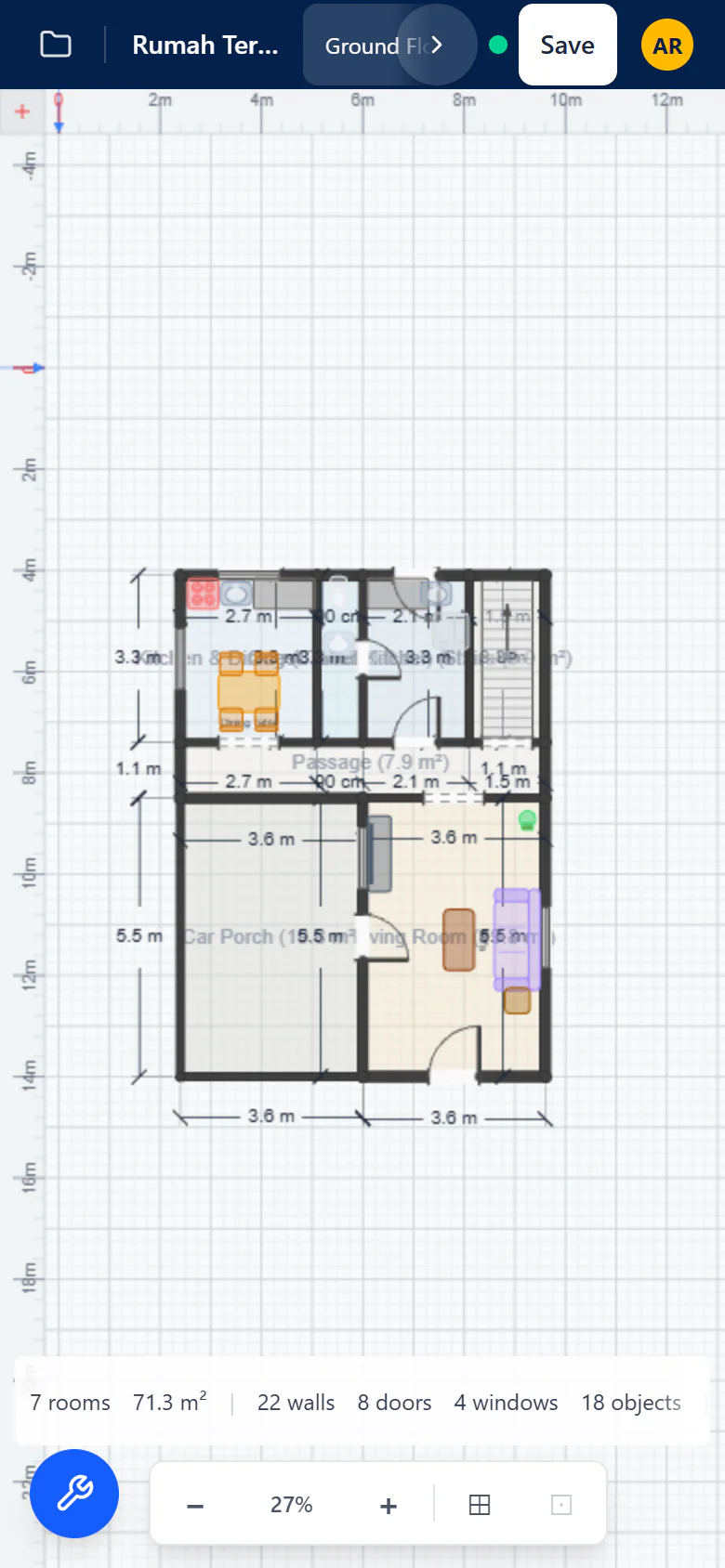
The editor on a phone
The plan fills the screen. Pinch to zoom, drag with two fingers to move the view. The tools live in a drawer so the plan stays large.
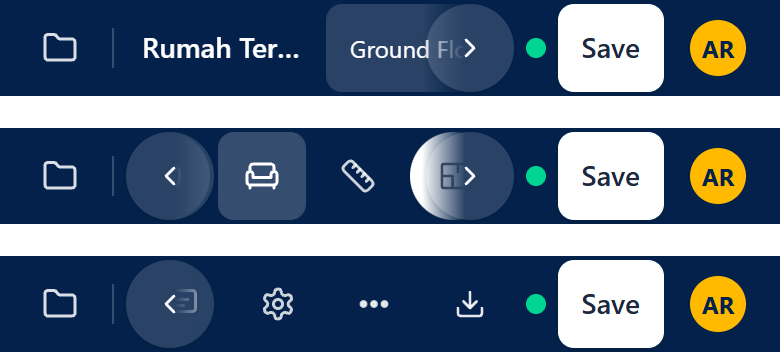
Swipe the header
On a small screen the middle of the header is a carousel: swipe it sideways, or press its arrows, to reach every control (undo, redo, 2D and 3D, Ask AI, Estimate and more). Nothing is hidden.
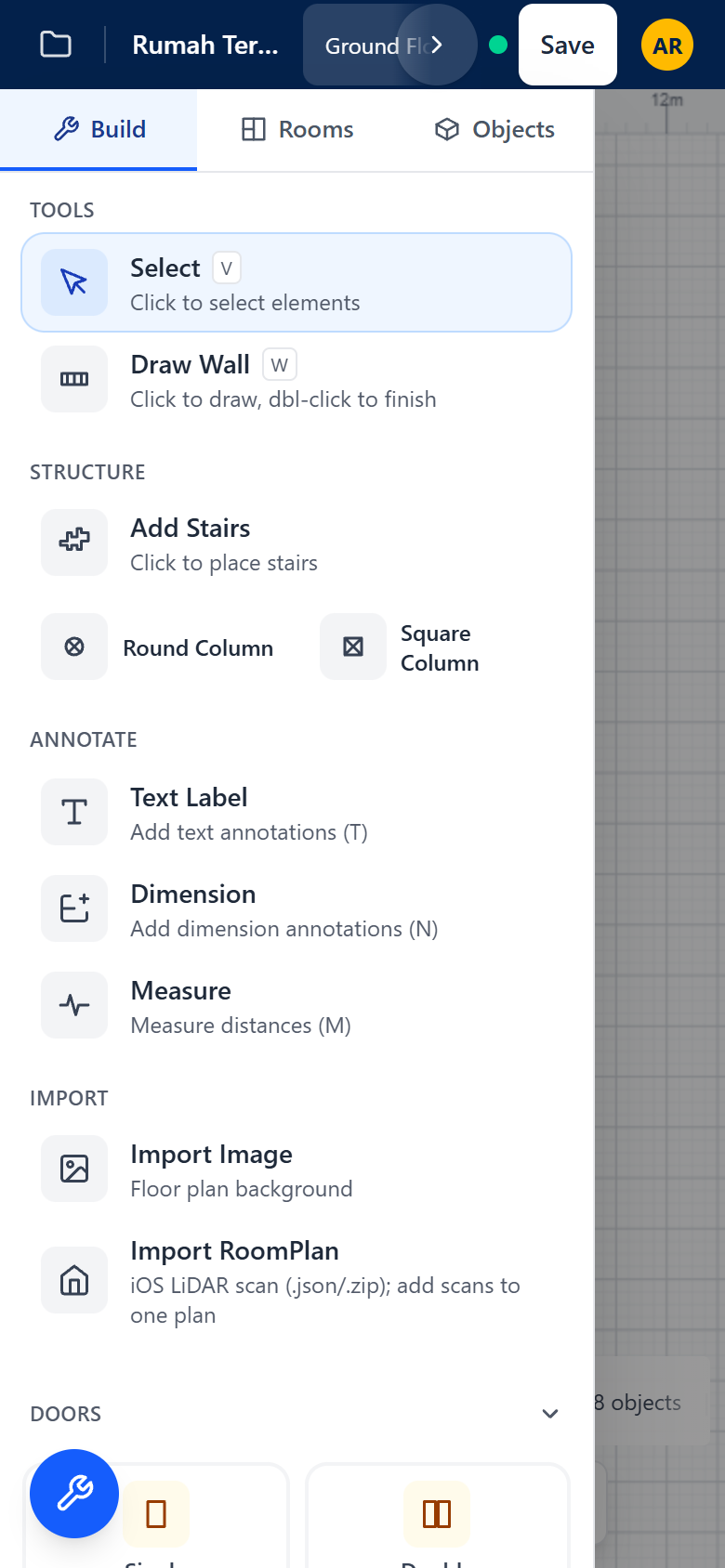
Open the tools drawer
Tap the Tools button to open the panel with Build, Rooms and Objects. Tap a tool or an item, then tap the plan. Close the drawer to see the whole plan again.
Draw walls with your finger
Choose Draw Wall, tap the plan to place each corner and tap Done (or double-tap) to finish. The other floating button, Undo point, takes back the last corner.
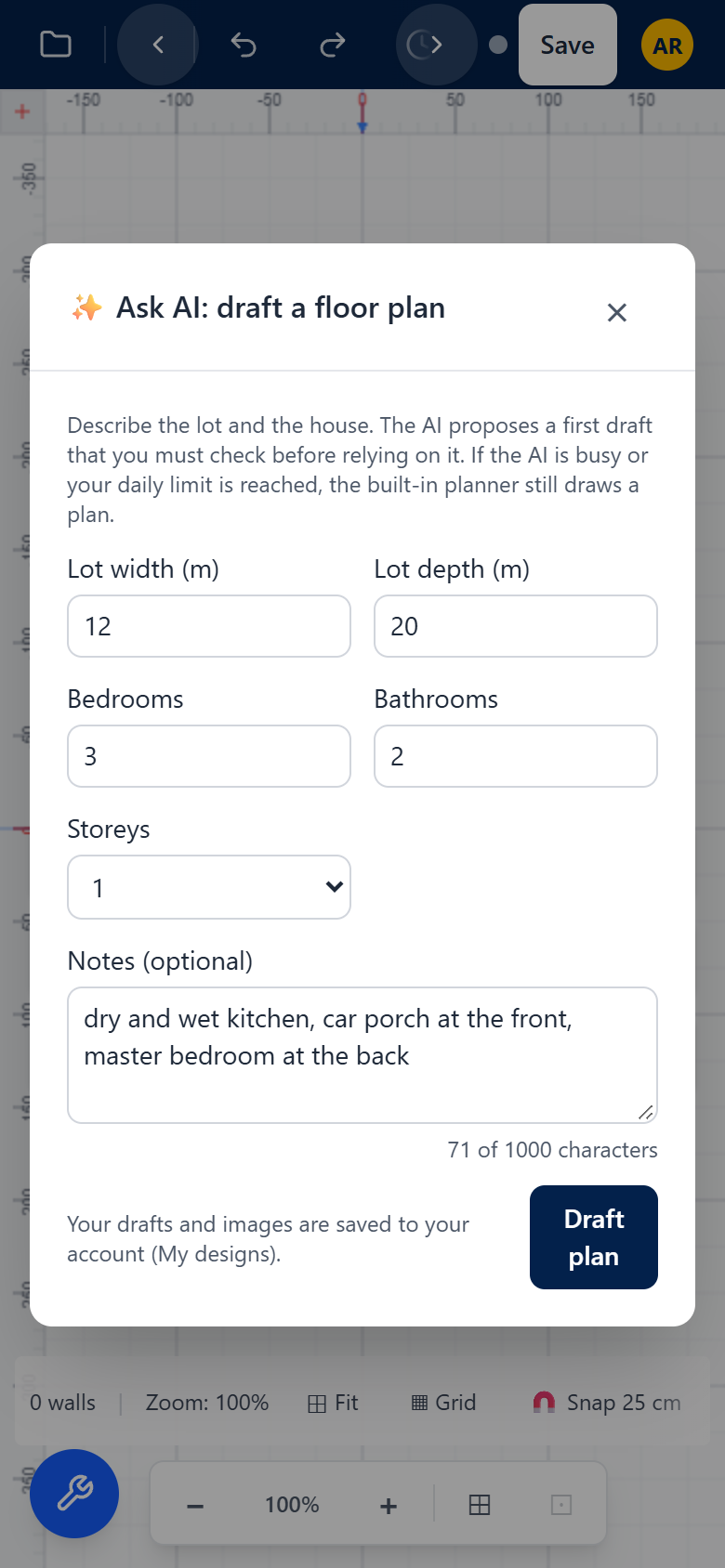
Ask the AI on a phone
The brief form is the same on a phone: lot size, rooms and notes. Fill it in, press Draft plan and wait for the draft to open.
See it in 3D
Orbit with one finger and pinch to zoom. The 3D controls sit along the edge, as on a computer.
Read the estimate
The estimate scrolls in one column: the range first, then where the money goes, then the BQ. Turn the phone sideways to see the BQ columns more comfortably.
Tip: press the left and right arrow keys to move between steps.
Chapter 10 of 11
Settings, language and theme
Switch between English and Bahasa Malaysia, light and dark, and set your units.
Open Settings with the gear in the editor header, or from the More actions menu (the three dots) on a small screen.
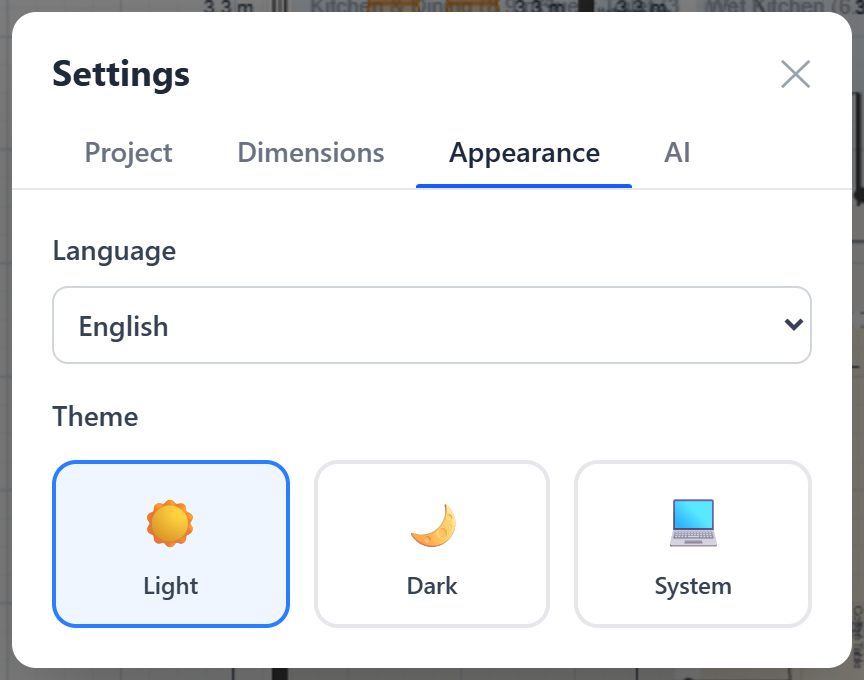
- Project: the project name and description.
- Dimensions: metric (m, cm) or imperial (ft, inch), and how walls are measured: centreline or edge to edge.
- Appearance: the Language (English or Bahasa Malaysia) and the Theme: Light, Dark or System. Studio starts in the light theme.
- You can also change the language with the language chooser at the top of every public page, including this guide. Your choice is remembered on this device.
Chapter 11 of 11
Questions, help and privacy
Quick answers, how to reach the RumahHQ team and how we treat your data.
Contact Us
Questions about your design or a quotation? Something not working? Use Contact Us: the speech-bubble icon in the editor header, or the Contact Us button in the footer of every public page.
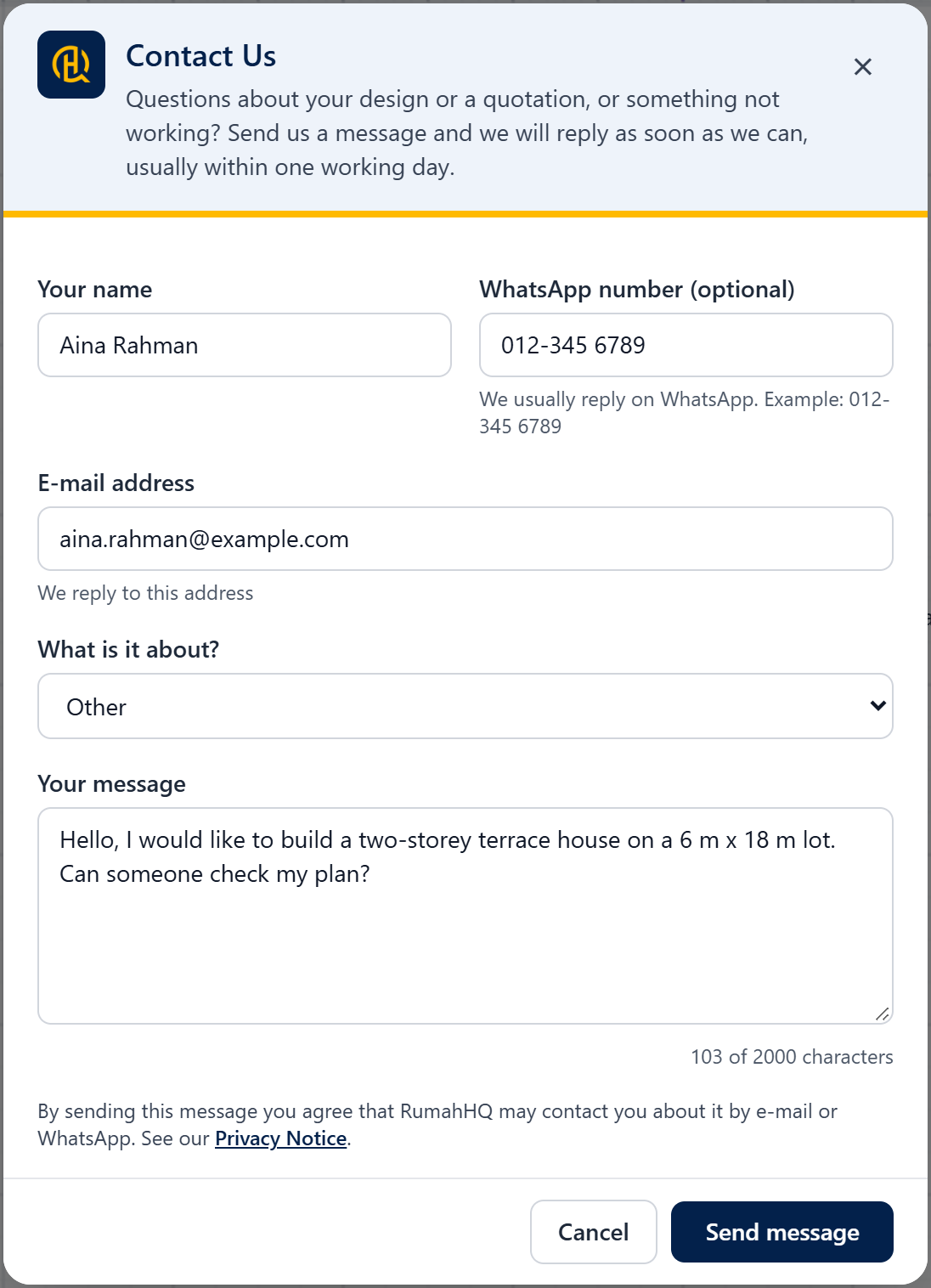
- Fill in your name, your e-mail address and, if you like, your WhatsApp number.
- Choose What is it about?: Quotation question, Design help, Technical problem, Partnership, Delete my data, or Other.
- Write your message (up to 2000 characters) and press Send message. You get a reference number and a short confirmation by e-mail. The team replies as soon as it can, usually within one working day.
You can also WhatsApp RumahHQ on +60 11-5454 2461, or e-mail [email protected]. The office is at No. 36, Tingkat 1, Jalan Raya Barat, Kawasan 6, 41000 Klang, Selangor.
Privacy and terms, in short
The full Privacy Notice and Terms of Use are on the site. In plain words:
- What we collect: only what Studio needs. You can draw without giving us anything. When you sign in, save, use AI, ask for a BQ or write to us, we keep your WhatsApp number, the name and e-mail you give us, your designs and AI work, your estimates and minimal technical data for security. Never type card or identity card numbers into notes or forms.
- How long: sign-in codes last 5 minutes. Sessions last up to 30 days. Designs and pictures you delete are kept 90 days so you can undo a mistake. Estimates and contact messages are kept 24 months.
- Your rights (PDPA): you can ask what we hold, get a copy, correct it, withdraw consent or delete your account. The quickest way is My data, then Delete my account and data, or Contact Us and Delete my data.
- Terms in one breath: Studio is a free planning tool. Estimates are indicative and not binding, and AI output is a draft: a qualified professional must check any design before it is used for approval, tender or construction.
Frequently asked questions
I cannot sign in. What should I check?
Check the number format first: 012-345 6789 for Malaysia, or + and the country code elsewhere. There is no password to forget: sign-in is always the WhatsApp code. For now codes only go to numbers in Malaysia, Singapore, Indonesia, Brunei and Thailand.
The WhatsApp code does not arrive.
The code goes to WhatsApp, not SMS. Check the number, wait a minute, then press Send a new code. Each code expires after 5 minutes, so use the newest message. If Studio says too many codes were requested, wait a few minutes. For your safety codes to one number can be paused for a while: if that happens, contact us.
Is it really free?
Yes. Drawing, templates, the 3D view, the cost estimate, the BQ by e-mail and signing in are all free. There is no payment anywhere in Studio.
Do I need an account to draw?
No. Draw as long as you like. You only sign in when you want to save to your account, use the AI, or get the estimate and BQ. If you never sign in, your work stays in your browser on that device.
I closed the tab. Is my drawing gone?
No. Studio keeps it in your browser on that device; open the editor again on the same browser. To open it on another device, save it to your account.
What is the AI limit?
The Ask AI form shows how many AI layouts you have left today. When they run out, AI suggestions resume tomorrow, and the built-in planner still draws a plan from your brief. AI pictures have their own daily count, shown next to the button. There is also a shared daily allowance for everyone: if it is used up, try again tomorrow.
The AI plan does not look right. What now?
Try one of the buttons under Other ways to fit more of your brief, or change your notes and press Draft plan again. Or edit the plan yourself: walls, doors and furniture can all be moved. An AI layout is always a draft to check.
How accurate is the estimate?
It is a guide. The range allows for what a drawing cannot show yet, and the final price is set from complete construction drawings, after a site visit and a signed agreement. Items under “Not included”, such as land, authority fees and furniture, are outside the estimate.
Why is there no button to download the BQ?
The on-screen BQ is for looking through; the PDF is the formal copy, with your reference number. Studio sends it only by e-mail to an address you confirmed, so it reaches the right inbox.
The BQ e-mail has not arrived.
It normally takes under a minute. Check your spam folder, then press Send another copy on the confirmation screen. If it still does not come, contact us with the reference number.
Can I keep editing after the BQ was sent?
Yes. The design stays yours. When you want an up-to-date BQ, press Calculate again and send a new one. A BQ is always made from your drawing as it is now, so it may differ from earlier figures. If you ask for many in a short time, wait a little or contact us.
Does it work on my phone?
Yes. The editor, 3D view and estimate all work on phones and tablets. See Phone and tablet tips.
The 3D view is blank.
The 3D view needs WebGL. Turn on hardware acceleration in your browser or try another browser. The 2D plan still works.
Can I use feet and inches?
Yes. In Settings, on the Dimensions tab, choose the imperial unit (ft, inch). Areas in the estimate can be shown in ft² or m².
How do I delete my data?
Open My data from the account menu and choose Delete my account and data, or use Contact Us and Delete my data. We reply within 21 days.
Who do I call?
The quickest route is the Contact Us form. You can also WhatsApp +60 11-5454 2461 or e-mail [email protected]. Quote your BQ or contact reference number and we will find everything quickly.